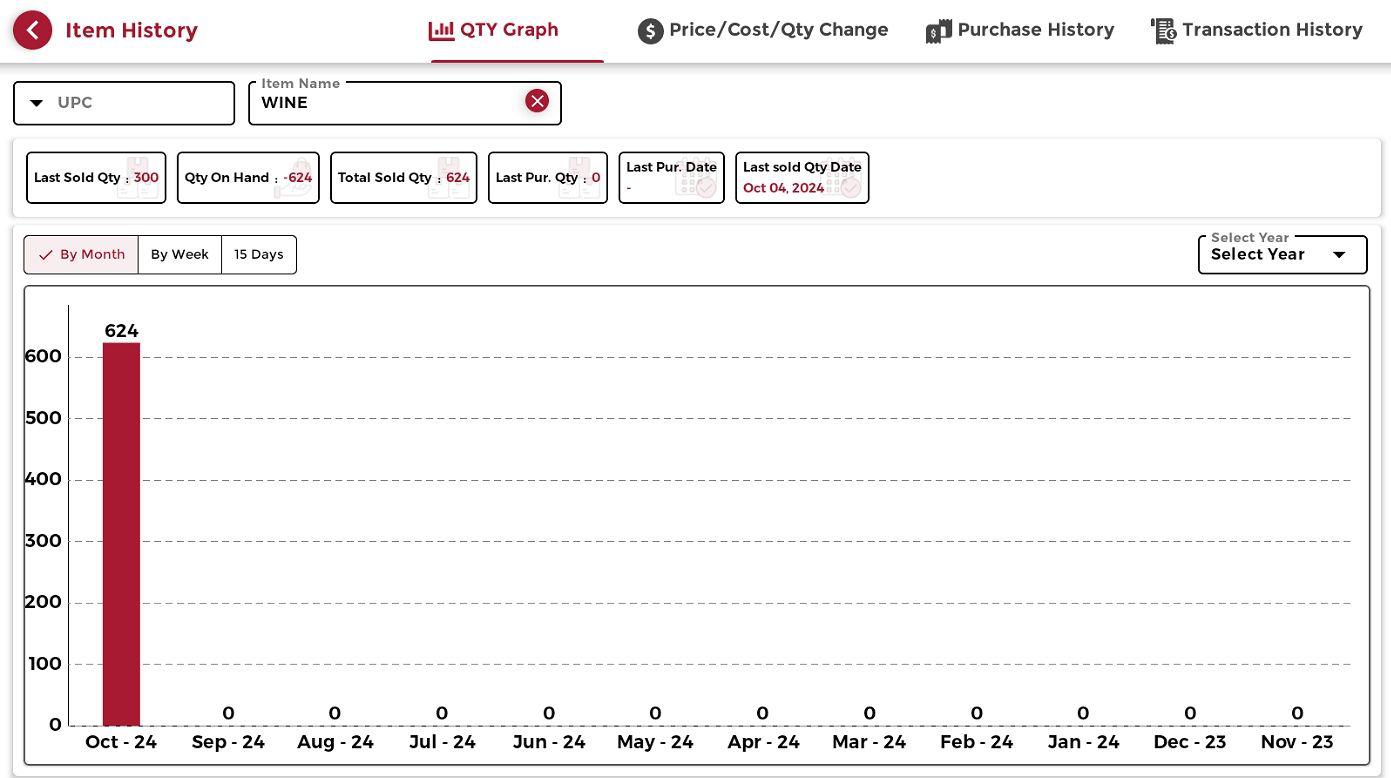
Main Menu Functions #
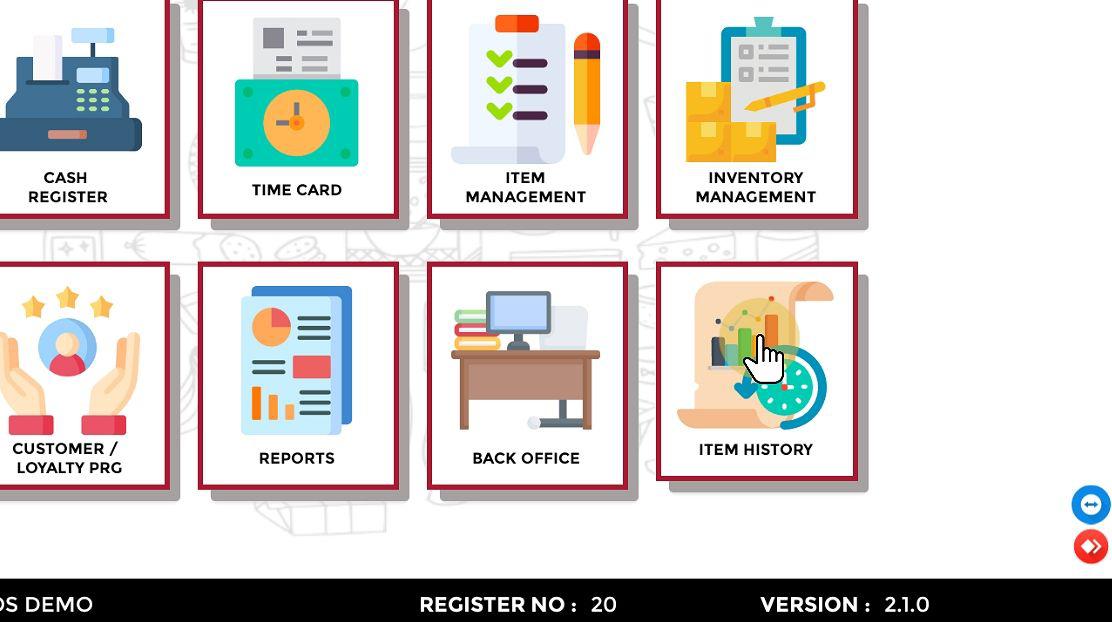
This page serves as the navigation hub for accessing the main functions of the POS.
Cash Register #
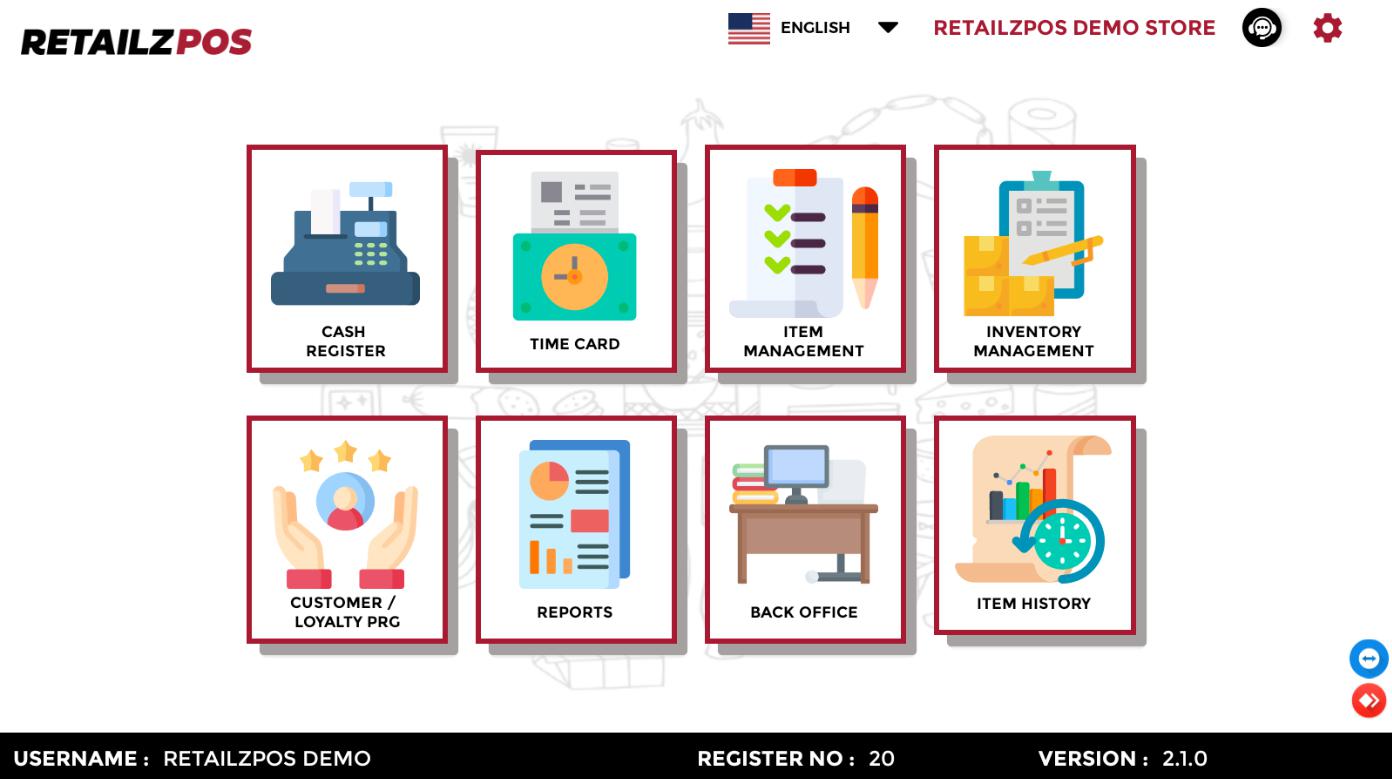
The Cash Register is where all sales transactions are processed.
- From the main menu screen, select the Cash Register Menu.
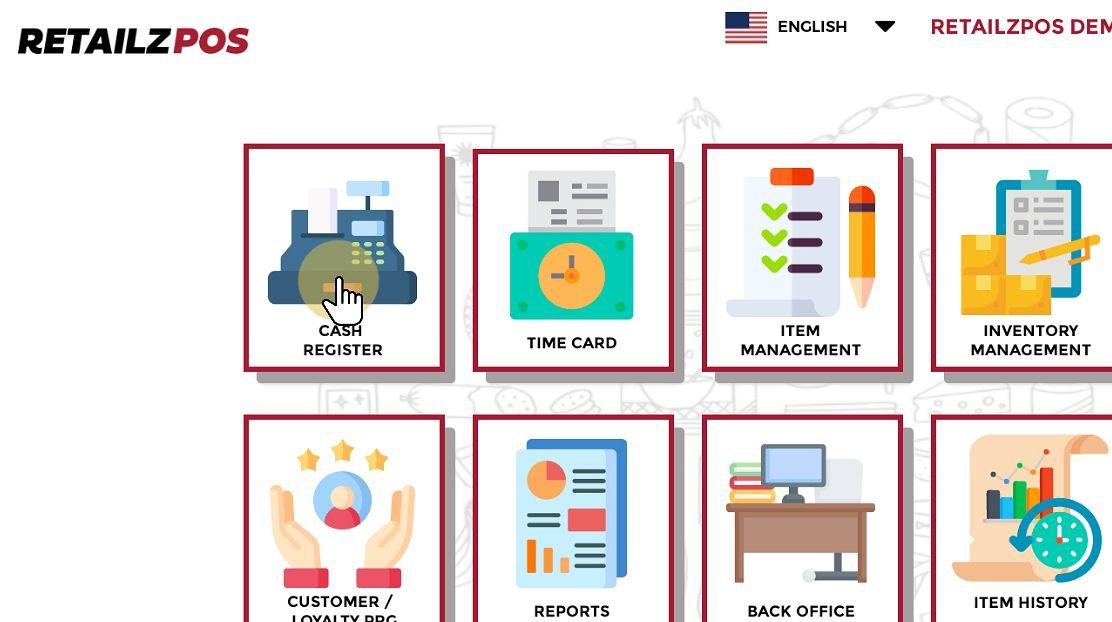
Cash Register – Menu #
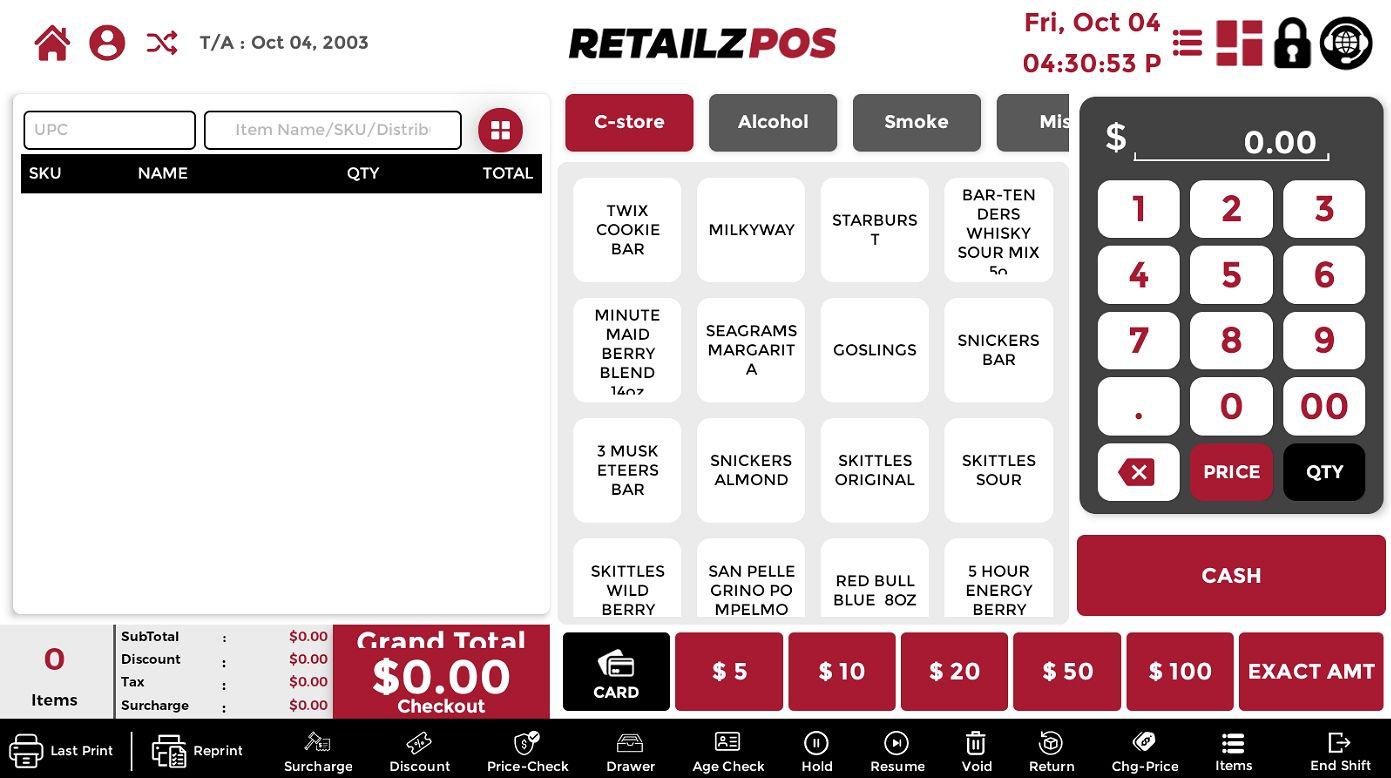
Once the Cash Register Menu is selected, you will be taken to the Cash Register screen.
Time Card #
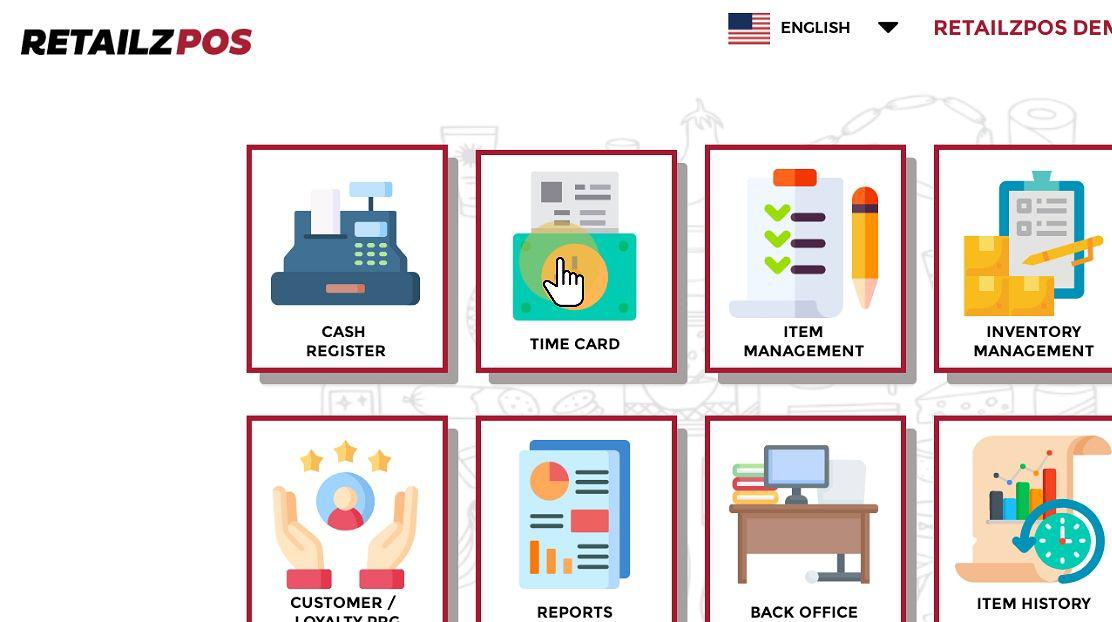
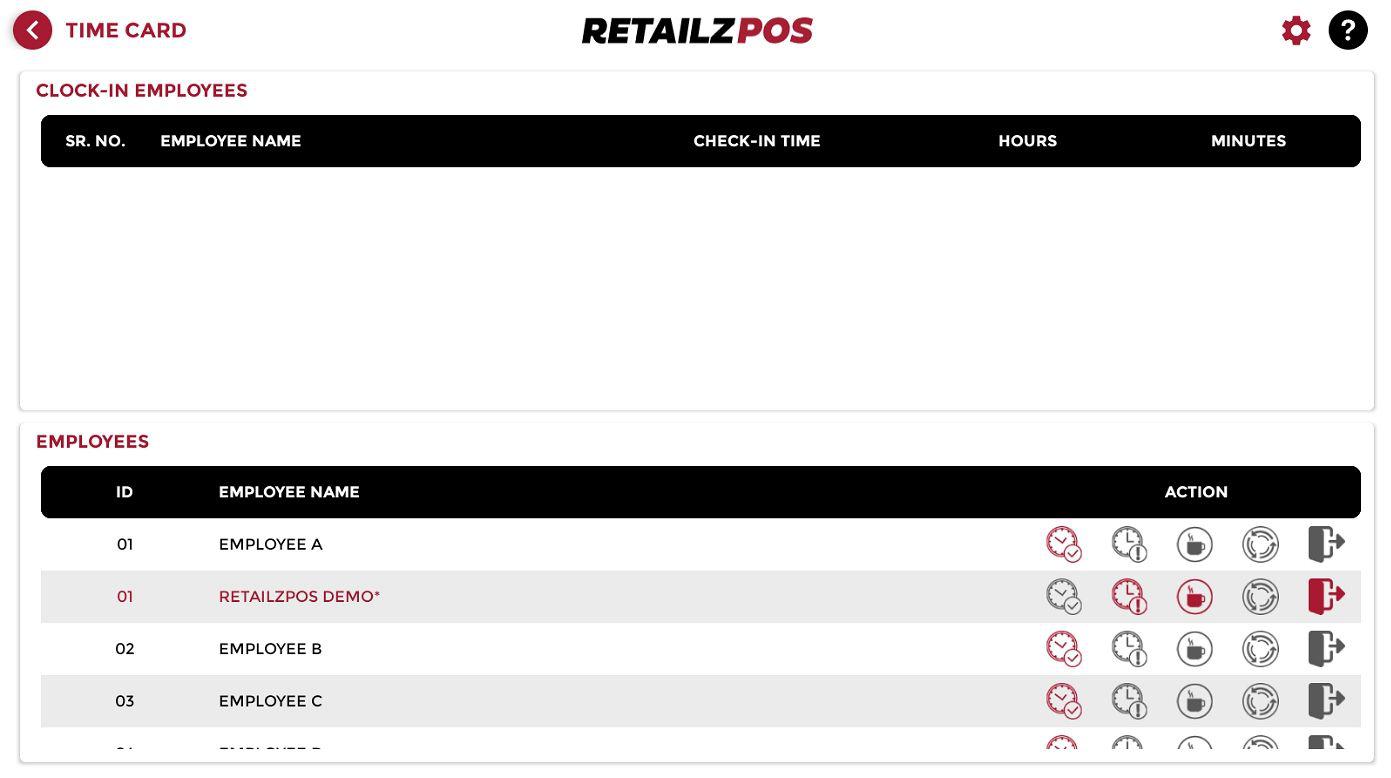
The Time Card Menu is used to track employee work hours by clocking in and out of shifts, as well as managing breaks.
- From the main menu screen, select the Time Card Menu.
Time Card – Menu #
The Time Card screen displays all employees with open shifts and those clocked in.
Item Management #
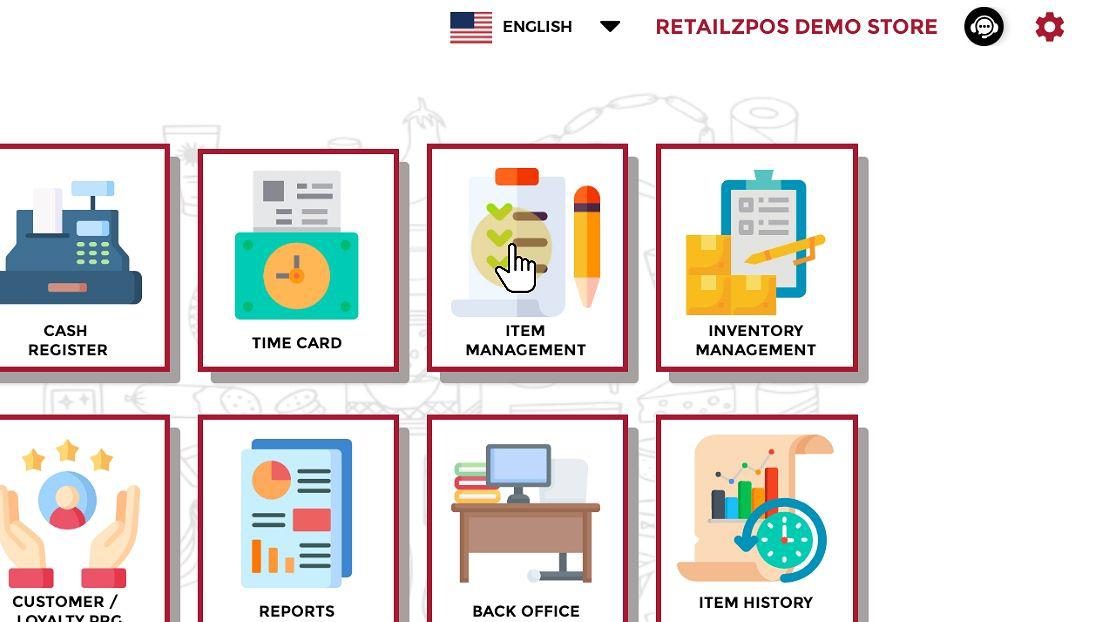
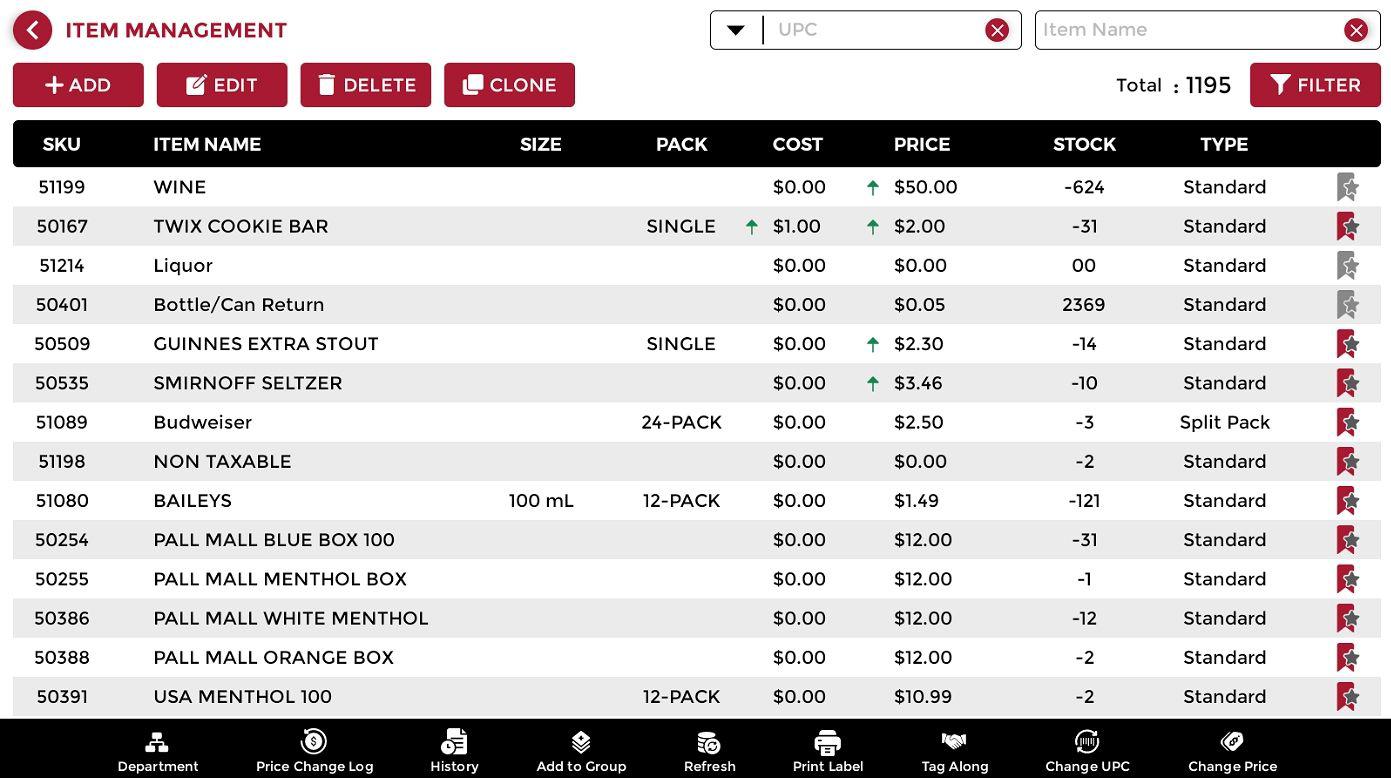
The Item Management menu provides access to the entire product list, allowing you to add, edit, delete, clone items, print labels, and change item prices.
- From the main menu screen, select Item Management.
Item Management – Menu #
The Item Management menu displays all store products.
Inventory Management #
Inventory Management is used to add purchase bills, process EDI invoices, make adjustments, and manage store distributors.
- From the main menu screen, select Inventory Management.
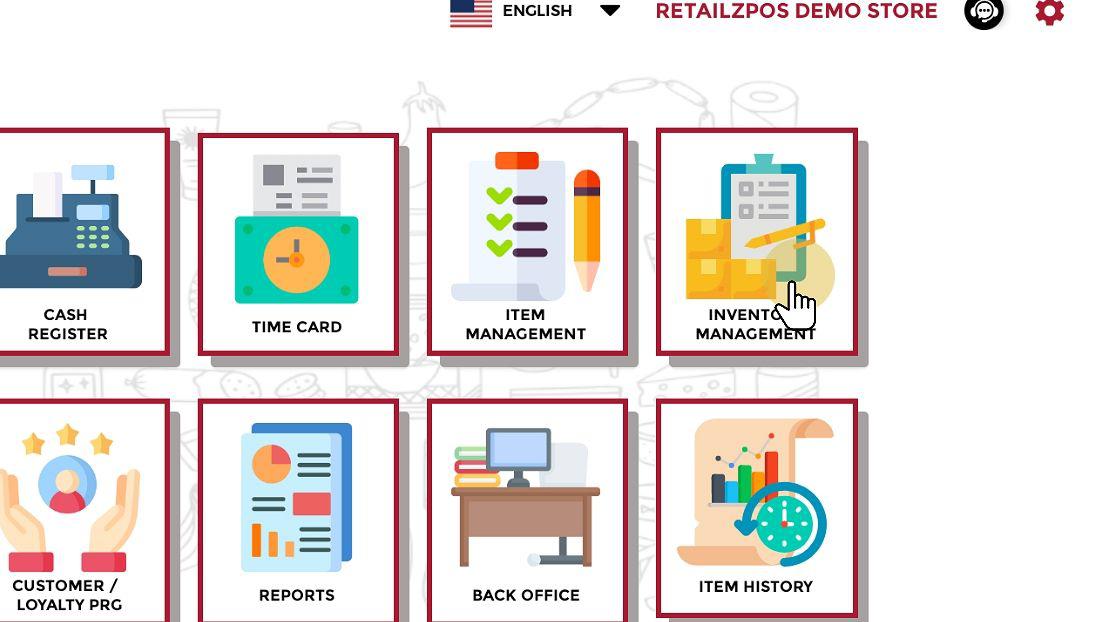
Inventory Management – Menu #
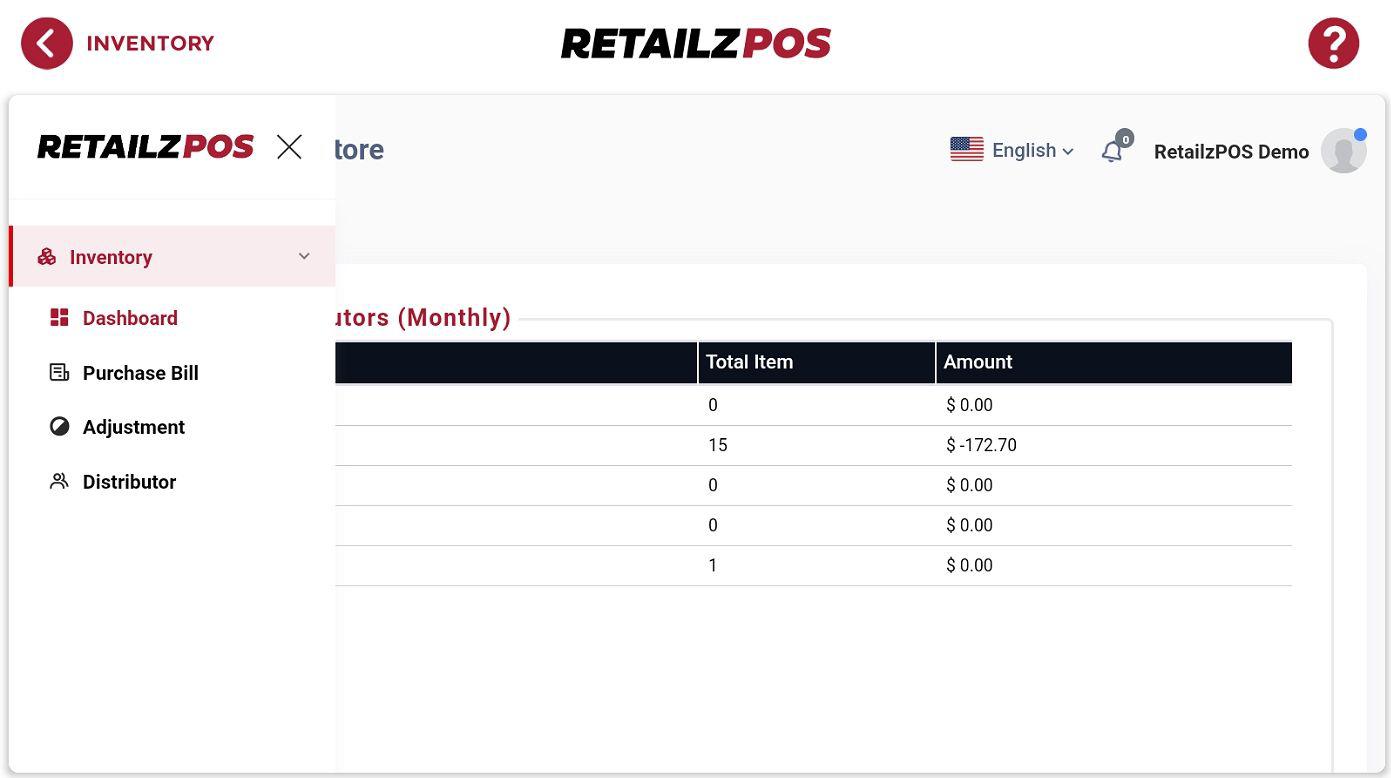
The Inventory Management screen provides access to a dropdown of features.
Customer/Loyalty #
The Customer/Loyalty menu is used to add customers, create house accounts, provide store credit, and manage customer settlements.
- From the main menu screen, select Customer Loyalty Program.
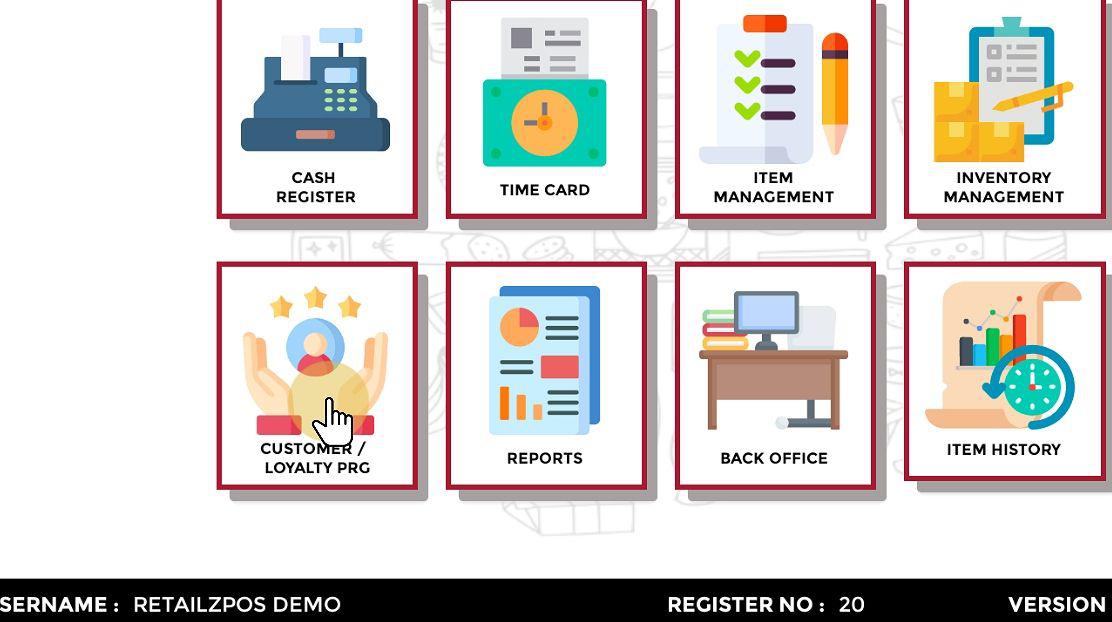
Customer/Loyalty – Menu #
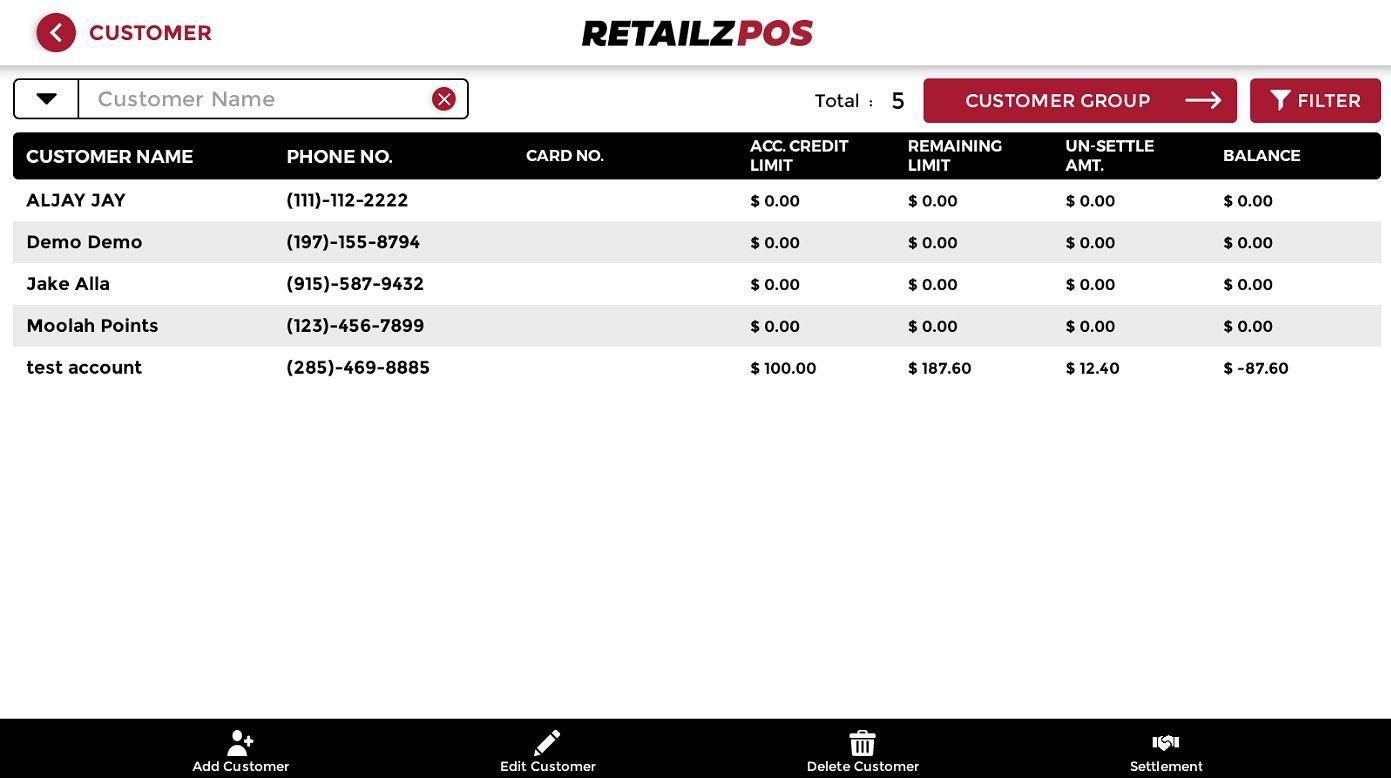
The Customer Loyalty Program screen displays all existing customers.
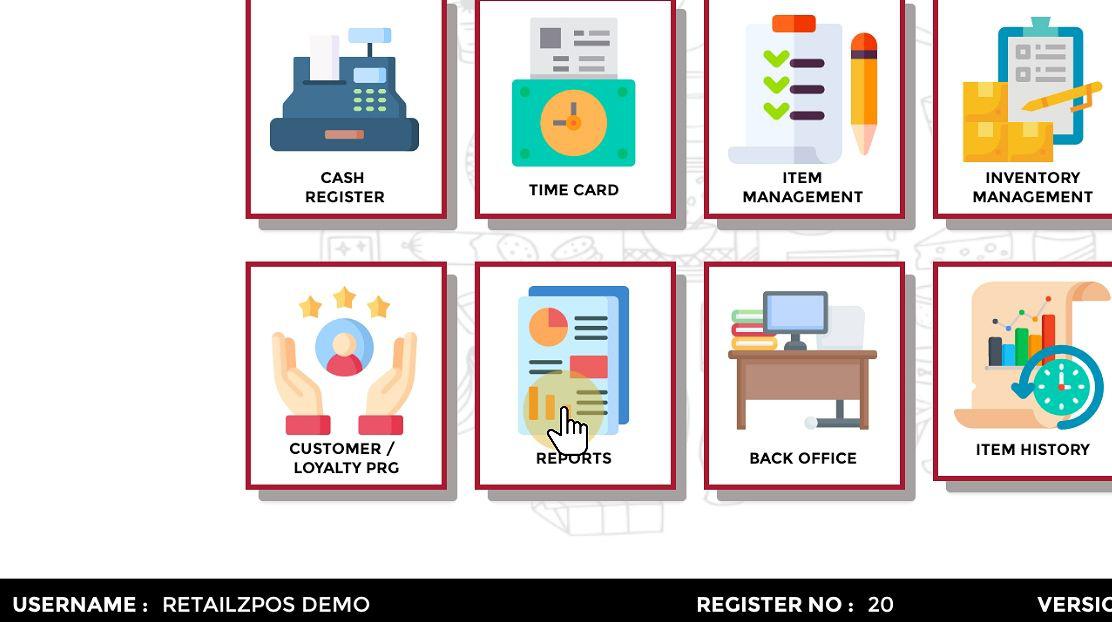
Reports #
Reports allow filtering specific sales data to gain insights into business performance.
- From the main menu screen, select Reports.
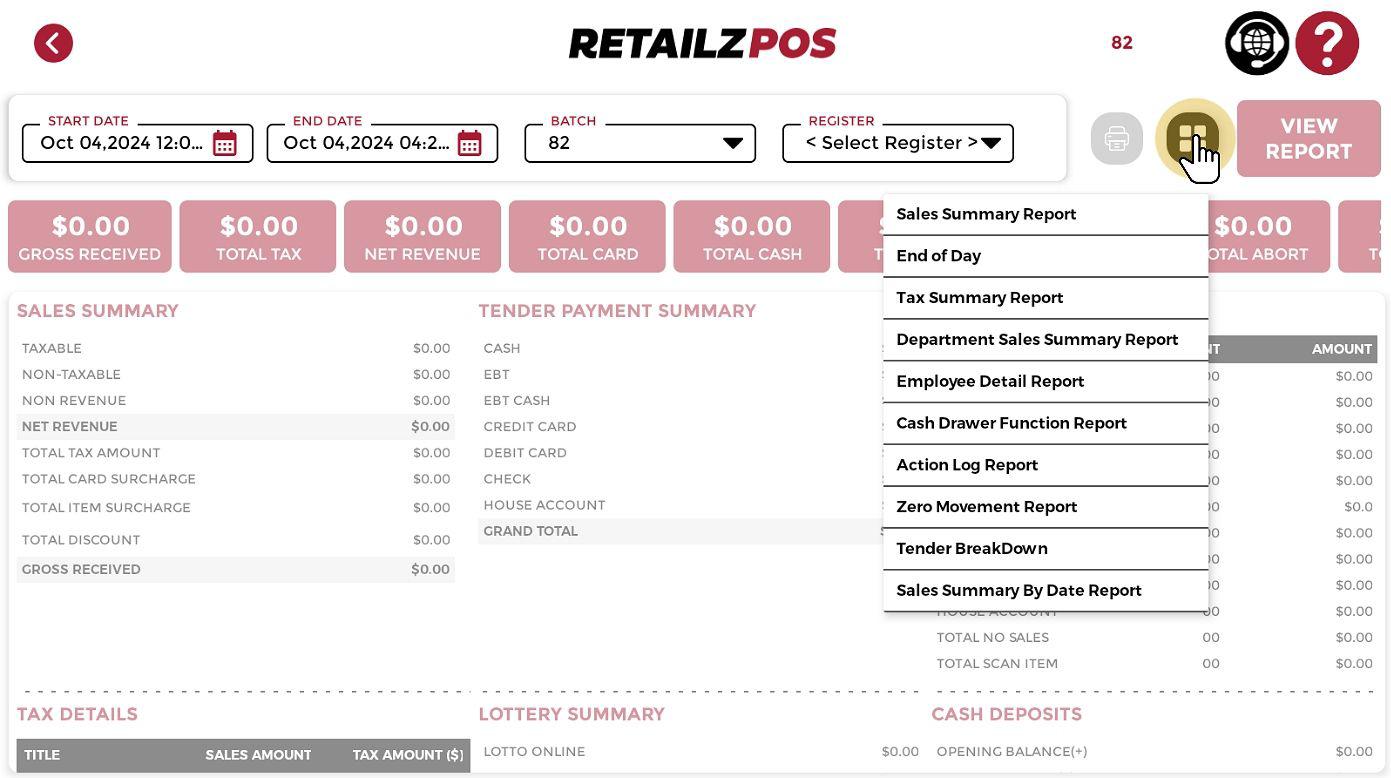
Reports – List of Reports #
The Reports screen displays a list of summaries and various report types.
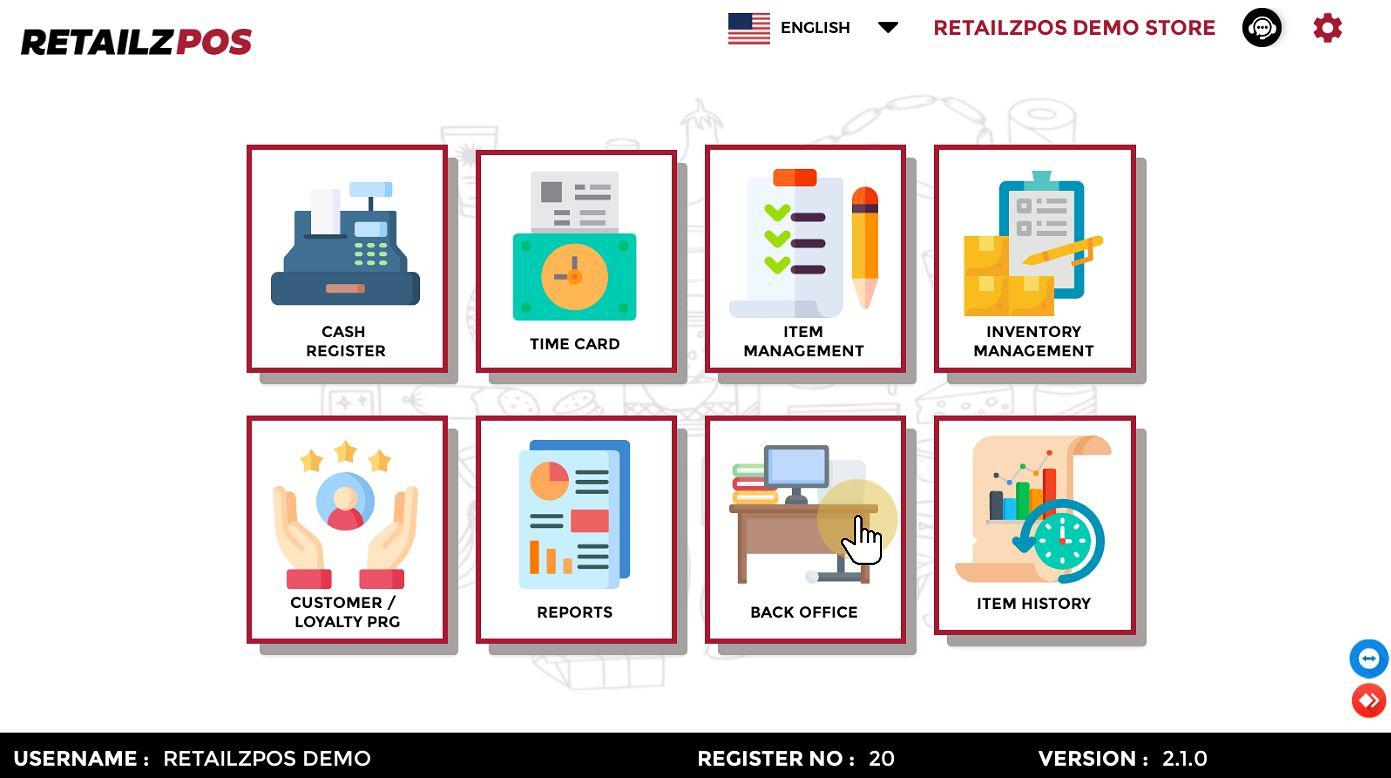
Back Office #
The Back Office provides access to features not available from the POS.
- From the main menu screen, select the Back Office.
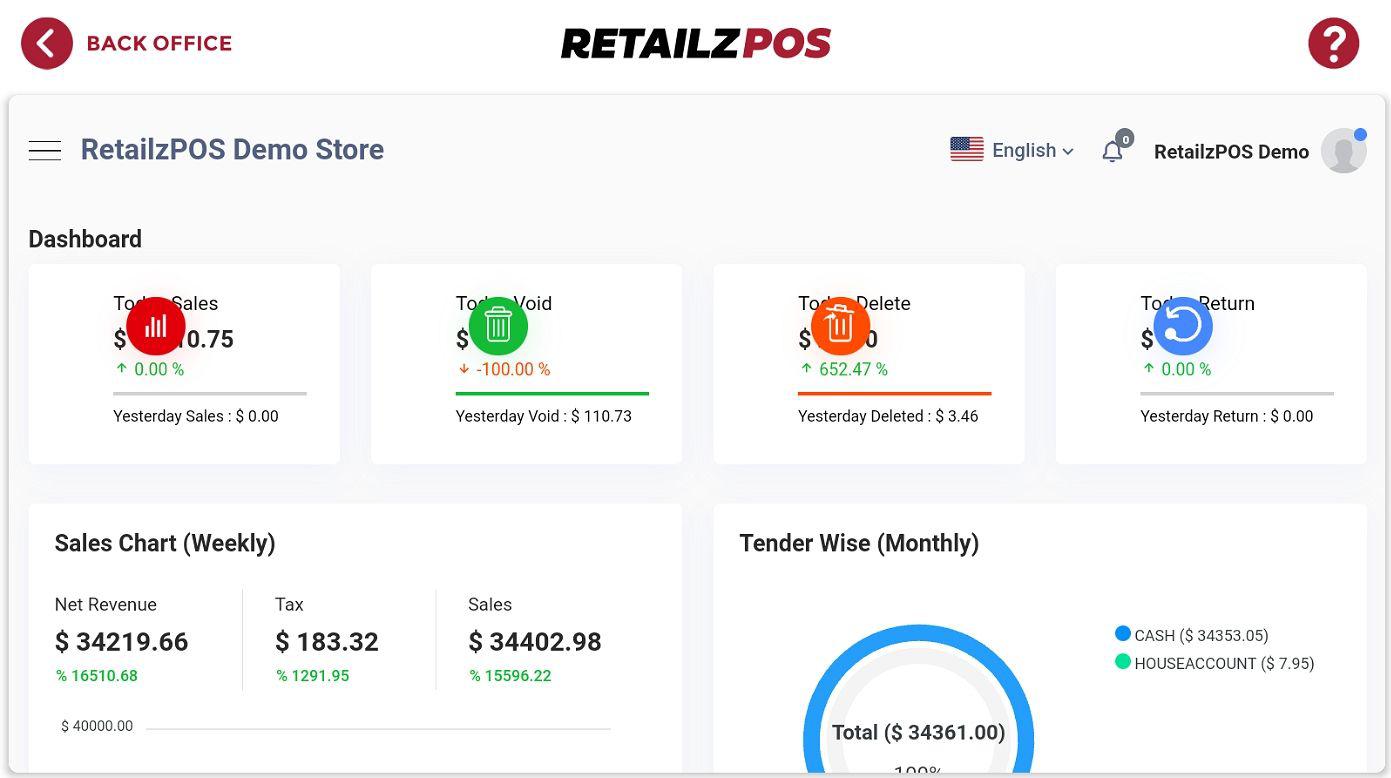
Back Office – Dashboard #
The Back Office displays the store’s dashboard.
Item History #
Item History displays item quantities, price/cost/quantity changes, purchase history, and transaction history.
- From the main menu screen, select Item History.
Item History – Quantity Graph #
The Item History screen displays the Quantity Graph.