Overview #
The End Shift feature enables you to close your current shift, print your End of Day Report, and reconcile the cash in your drawer.
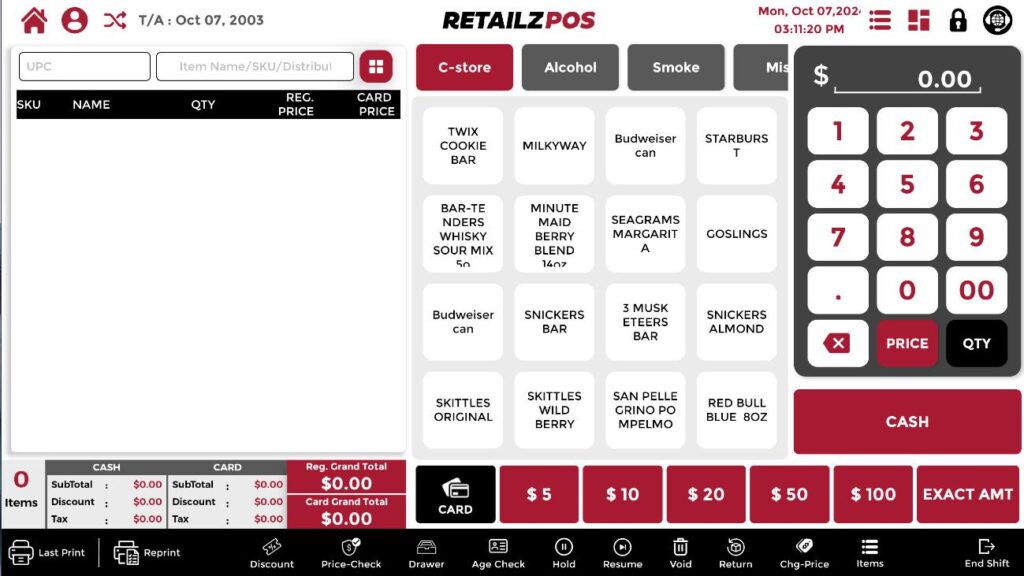
#
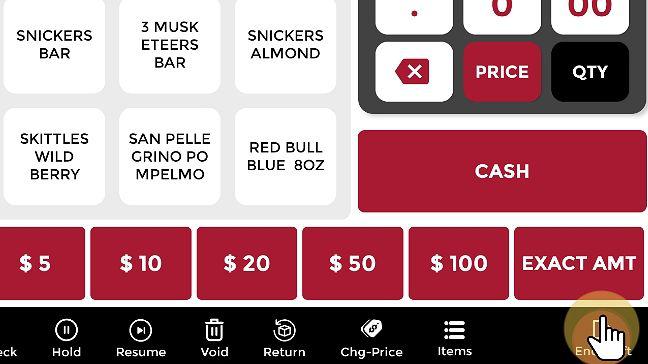
Select End Shift #
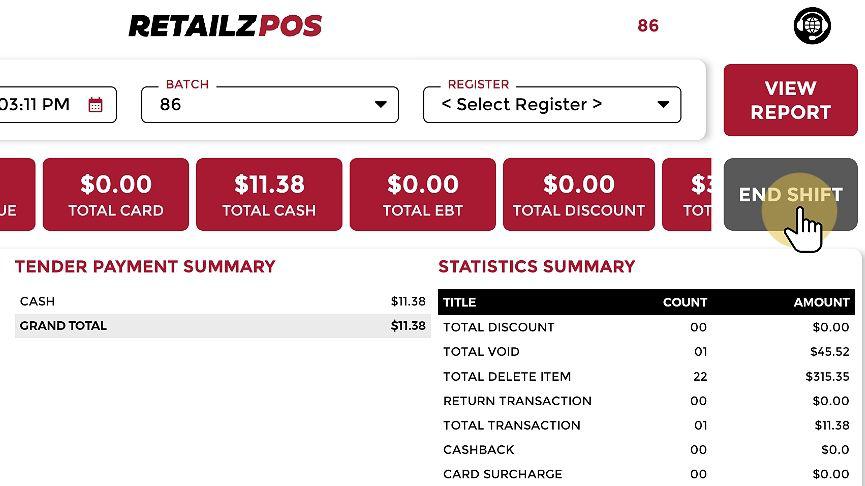
Select the End Shift button. Once the End Shift is initiated, you will be directed to the End of Shift Report.
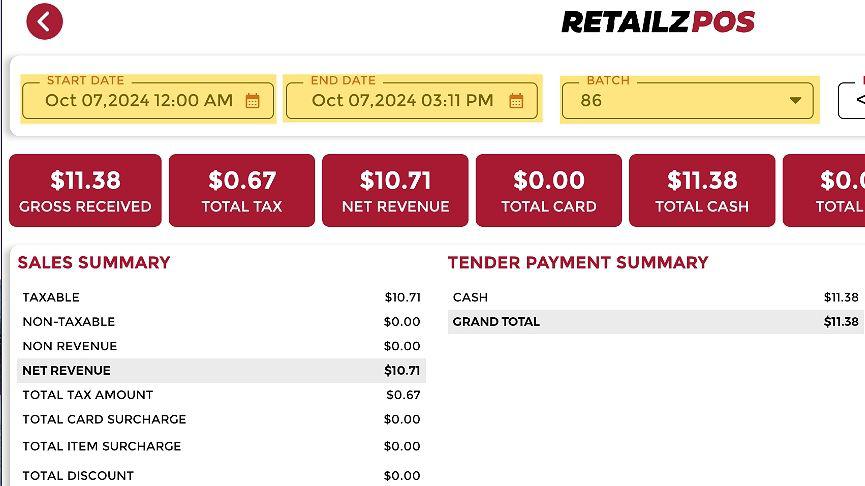
End of Shift Report Screen #
In this menu, you can view details such as the current date and the batch or shift number.
Select End Shift #
Select End Shift to continue to the Closing Drawer Reconciliation.
Closing Drawer Reconciliation #
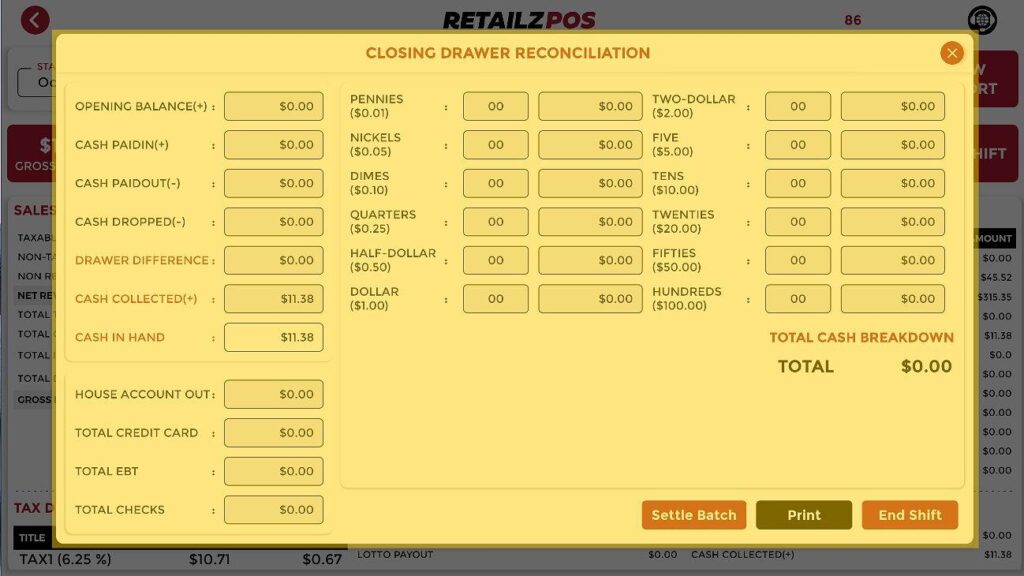
A new popup will appear with the Closing Drawer Reconciliation.
Select Cash in Hand Field #
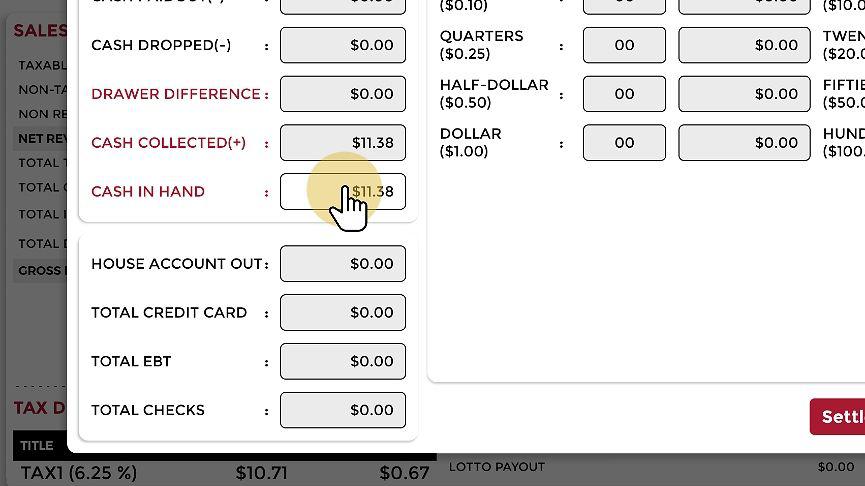
Select Cash In Hand to count your cash drawer.
Input Your Cash In Hand #
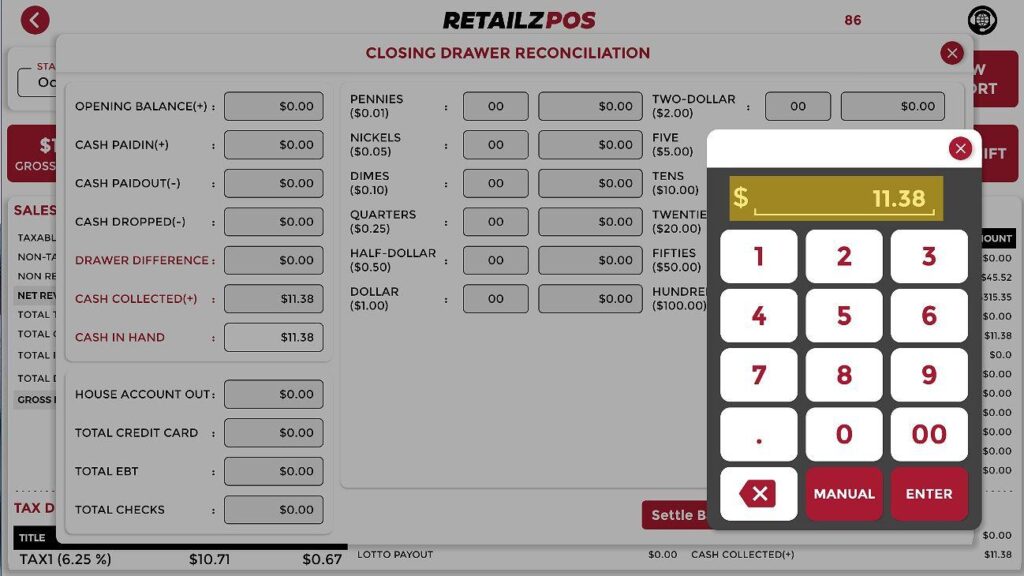
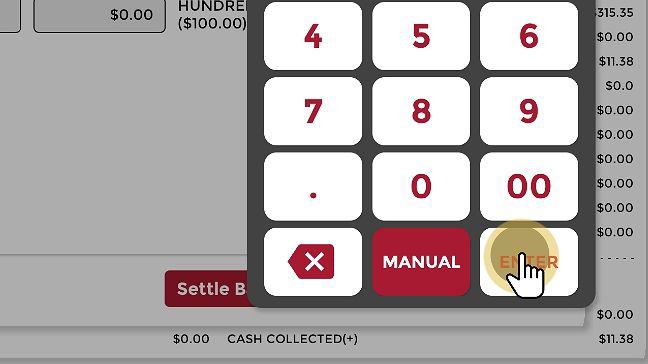
Input your Cash In Hand into the keypad popup.
Select Enter #
Select Enter. Your Closing Drawer has now been Reconciled.
Manual Option: You can choose the manual option if you prefer to count all the denominations of your cash manually.
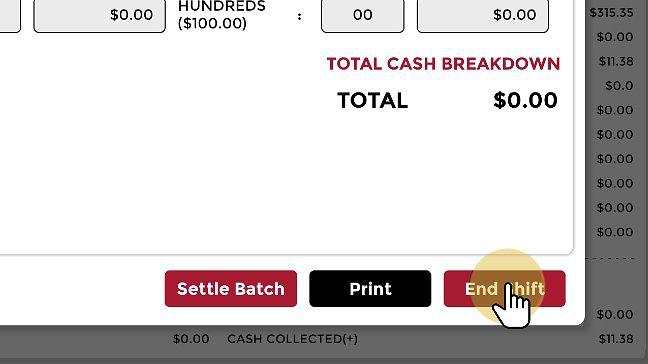
Select End Shift #
Select End Shift to continue to print the End of Day Report.
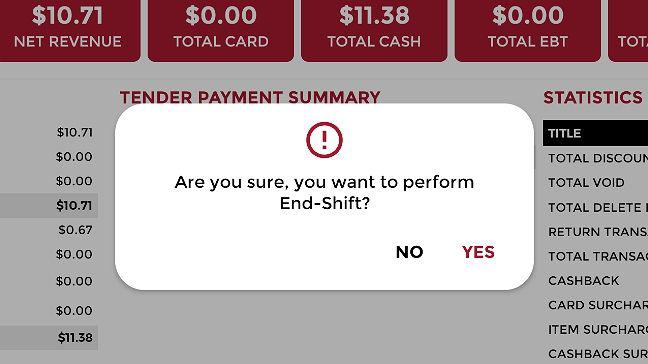
Confirmation Popup #
A popup will appear asking “Are you sure you want to perform End Shift?”
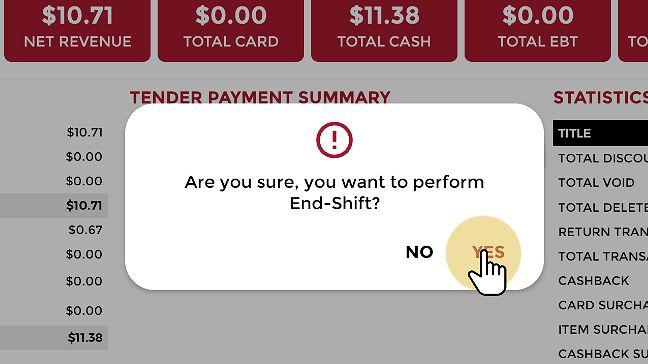
Select YES #
Select YES to end the shift.
Confirmation Popup #
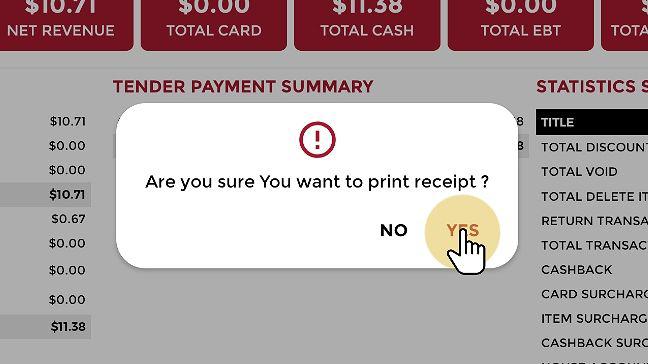
Another popup will appear asking “Are you sure you want to print the receipt?”
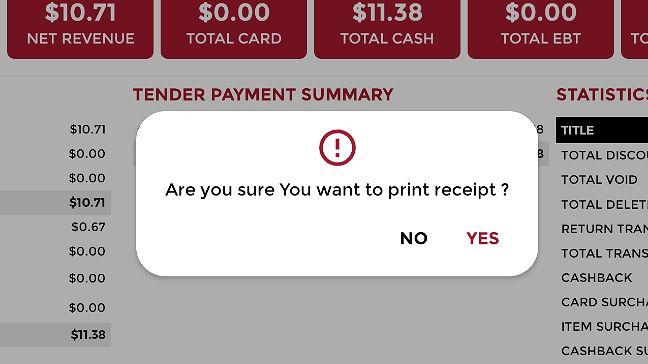
Select YES #
Select YES to print the End of Day Report.