POS – Login Screen #
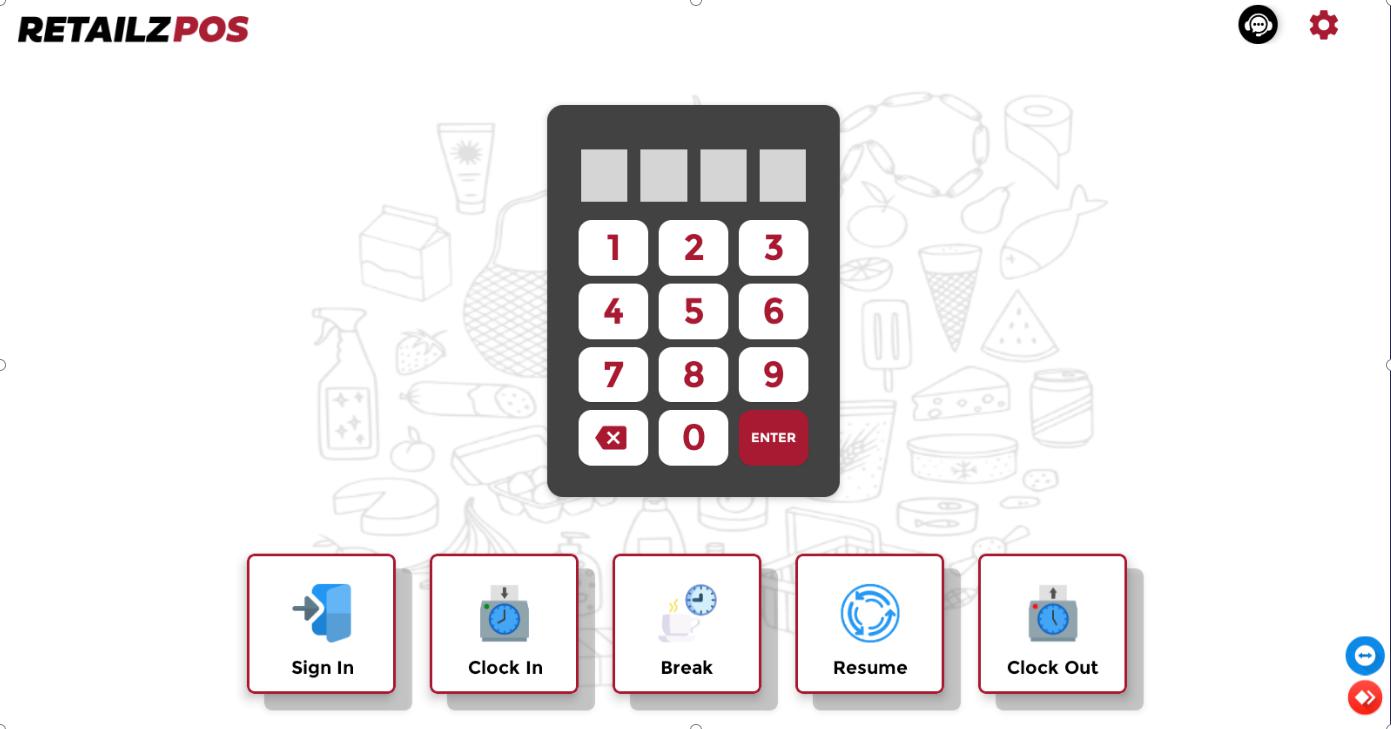
The login screen is used for opening shifts, clocking in and out employees, and managing break times (Break and resume).
Open a Shift – Enter PIN #
To open a New Shift, enter your four-digit access pin.

Sign In #
Select Sign In.

Enter Opening Balance #
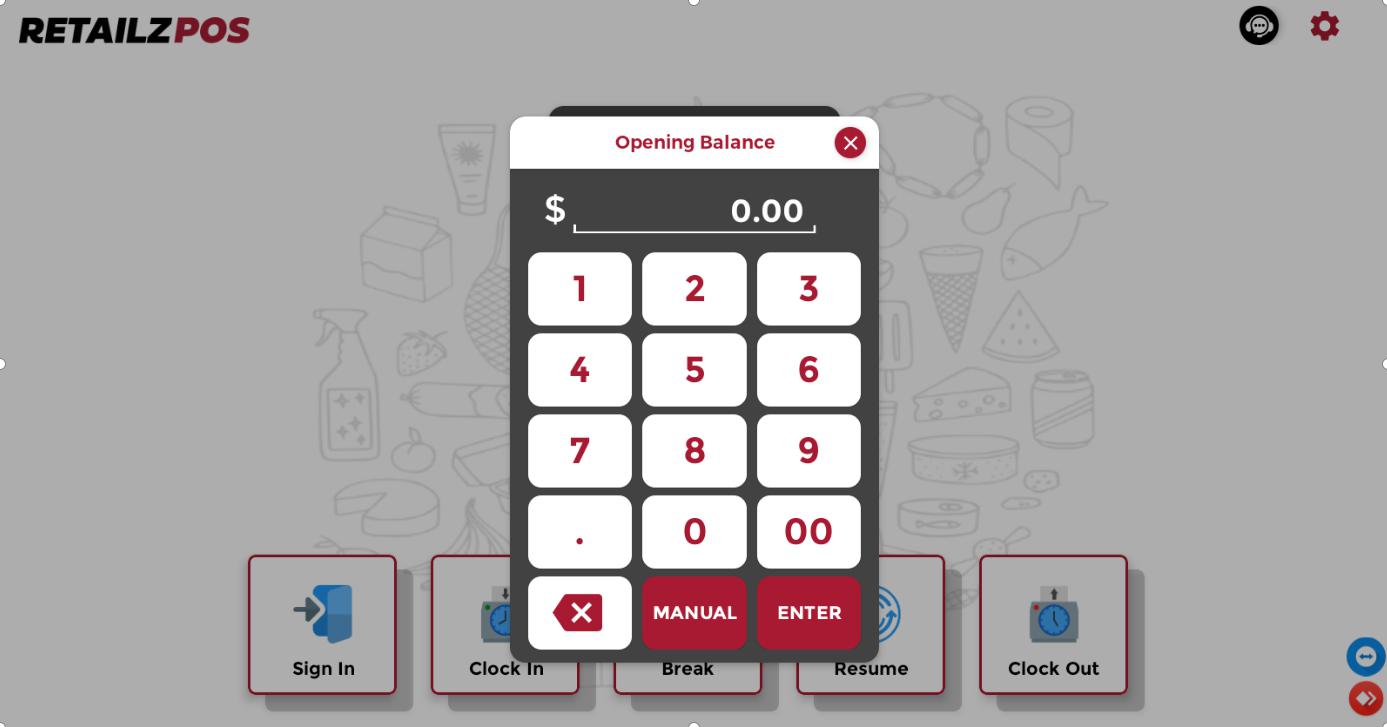
A popup will appear asking you to enter your new shift’s Opening Cash Drawer Balance.
Input Opening Balance #
Input your Opening Cash Drawer Balance.

Select Enter #
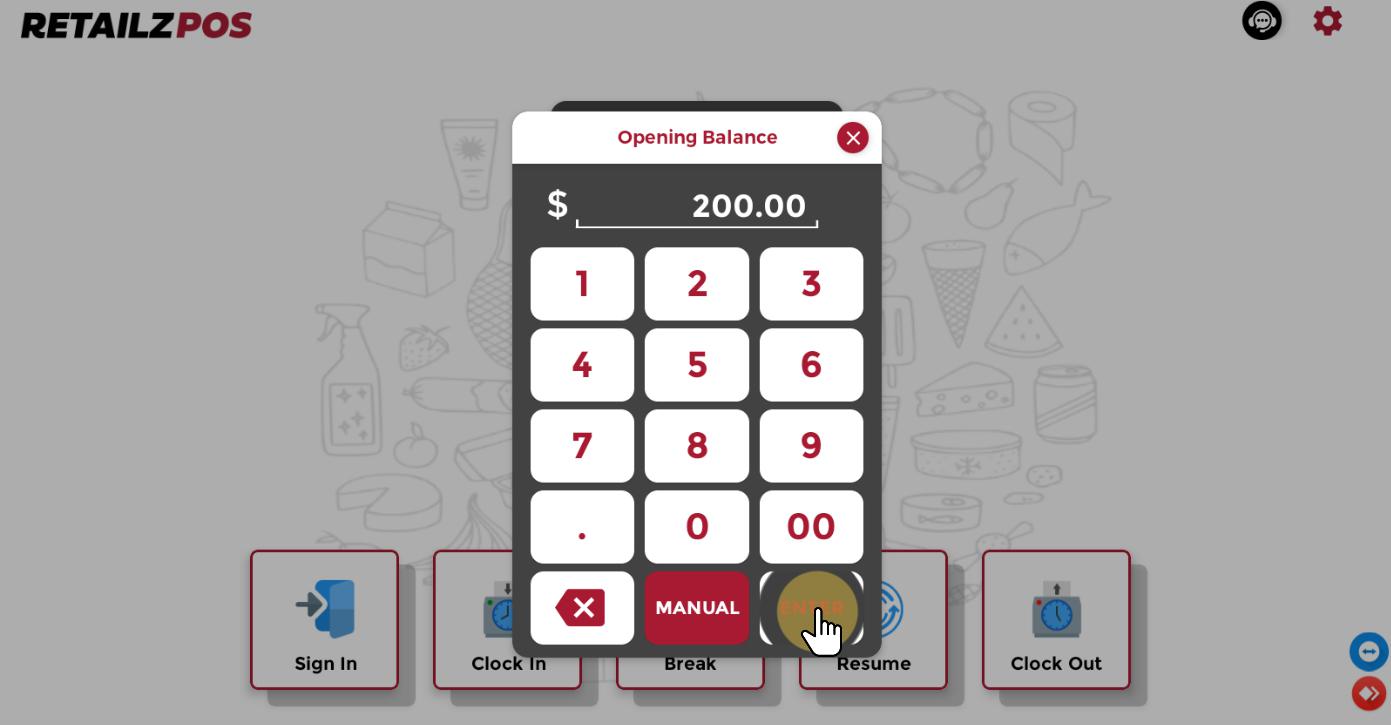
Select Enter.
Confirm #
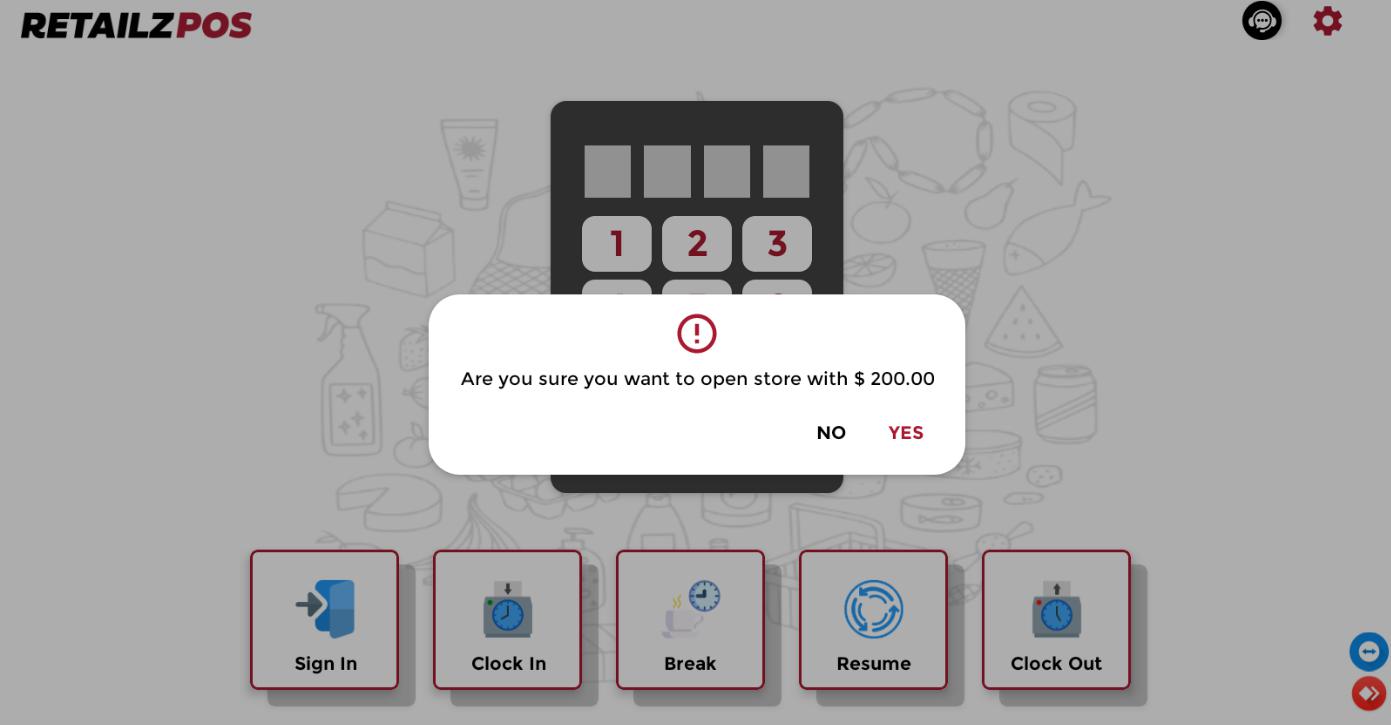
A popup will appear asking to confirm your Opening Cash Drawer Balance.
Select Yes #
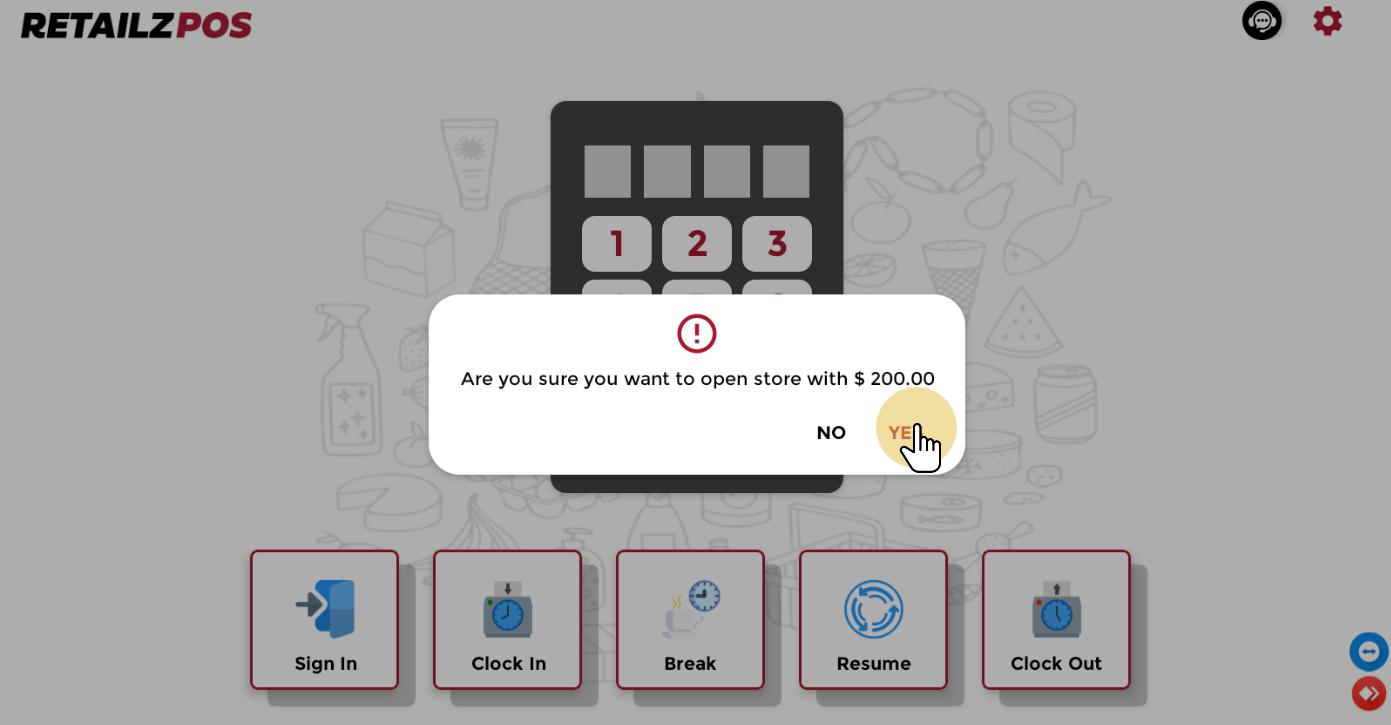
Select Yes to complete the opening of a New Shift.
Clock In – Enter PIN #
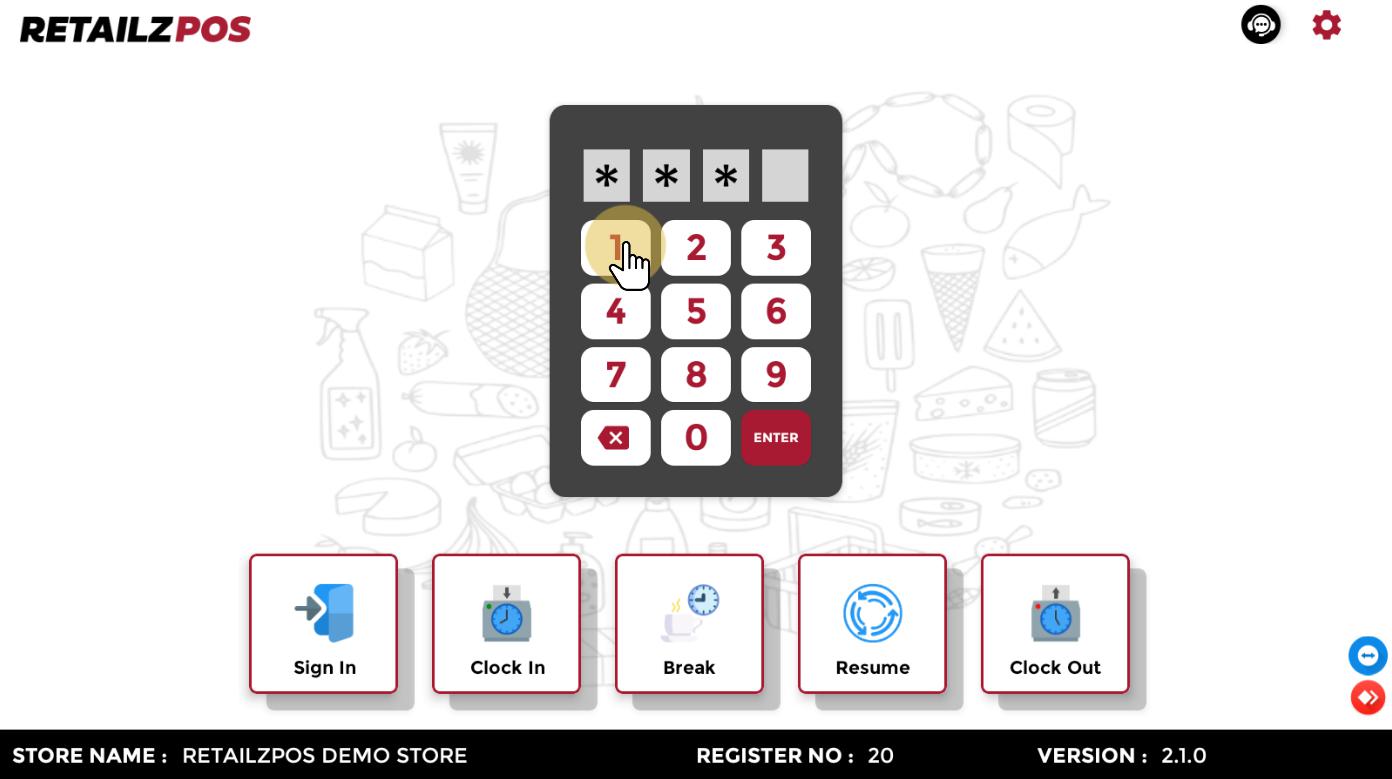
To Clock In an employee, enter your four-digit access pin.
Clock In #
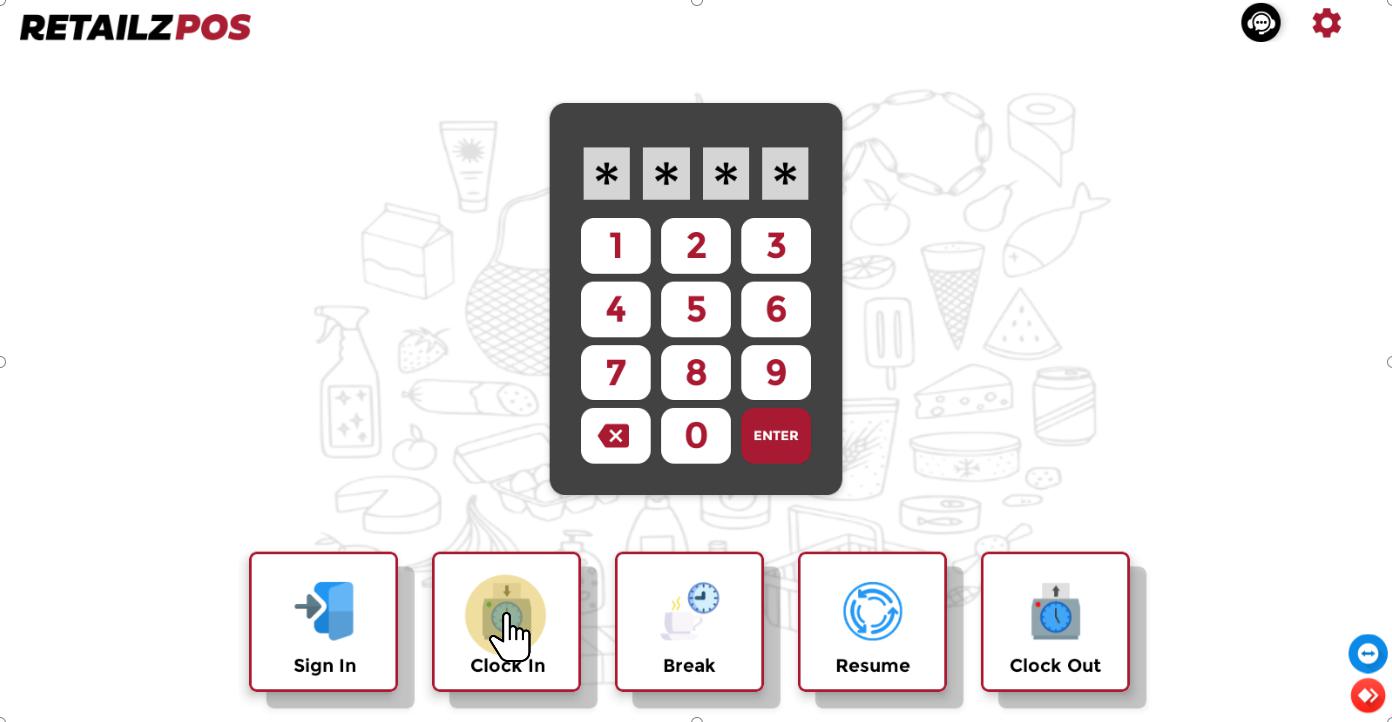
Select Clock In.
Clock In – Popup #
A popup will appear showing information about the Employee Name, Clock In Date, and Clock In Time.
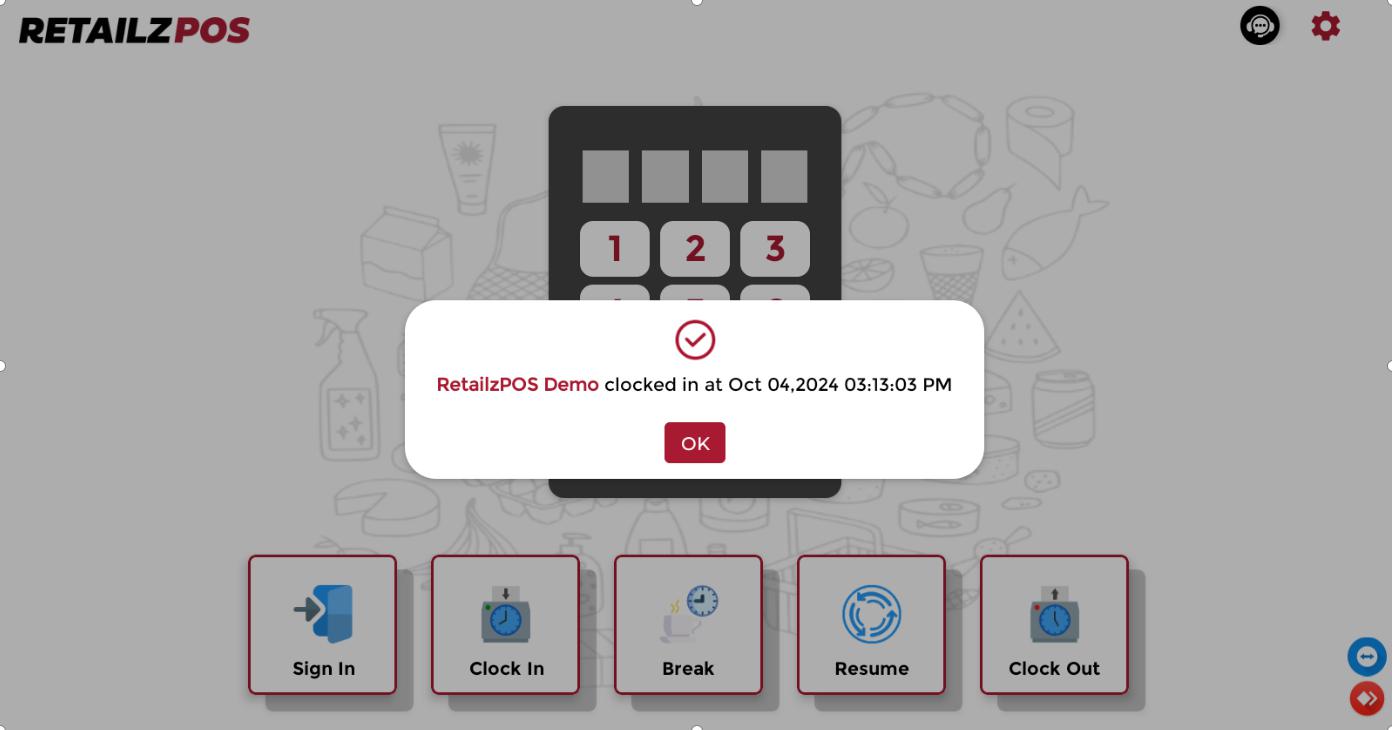
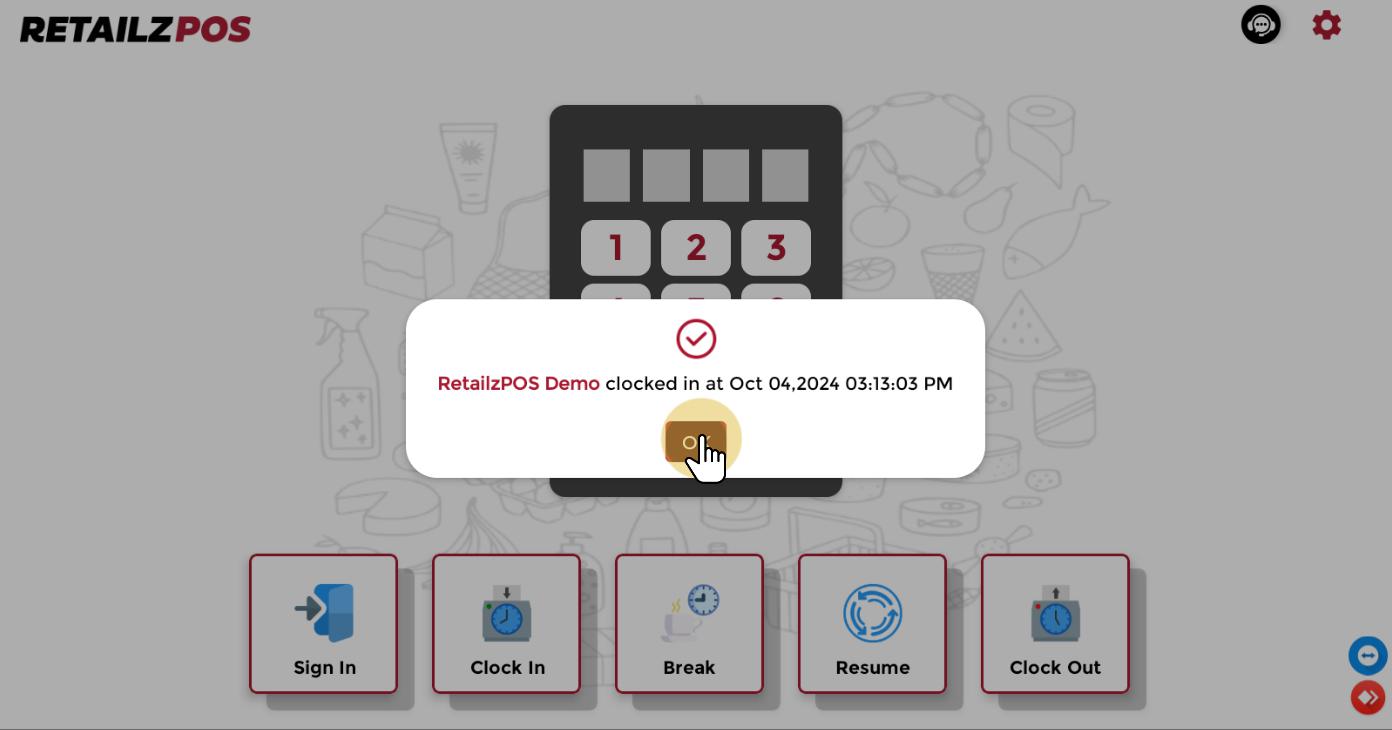
Select OK #
Select OK to successfully Clock In.
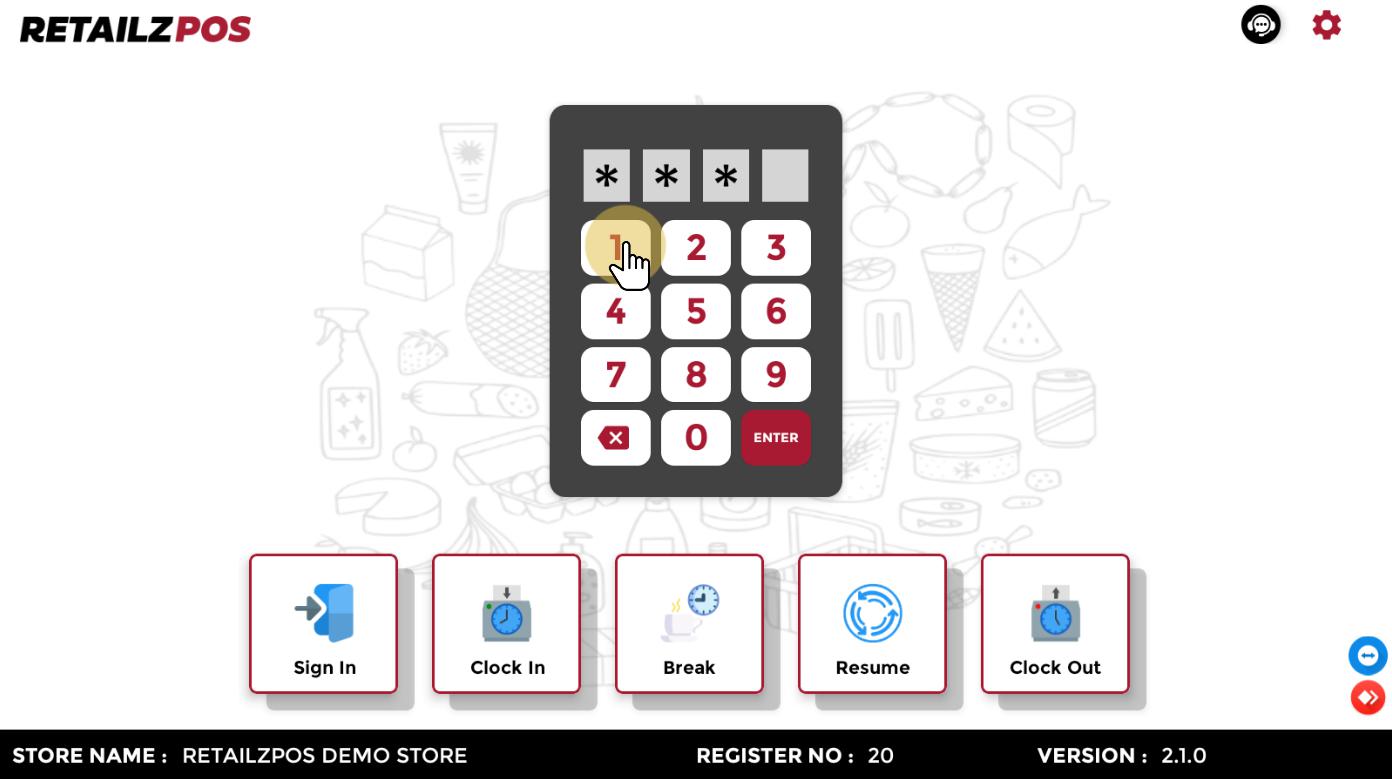
Clock Out – Enter PIN #
To Clock Out an employee, enter your four-digit access pin.
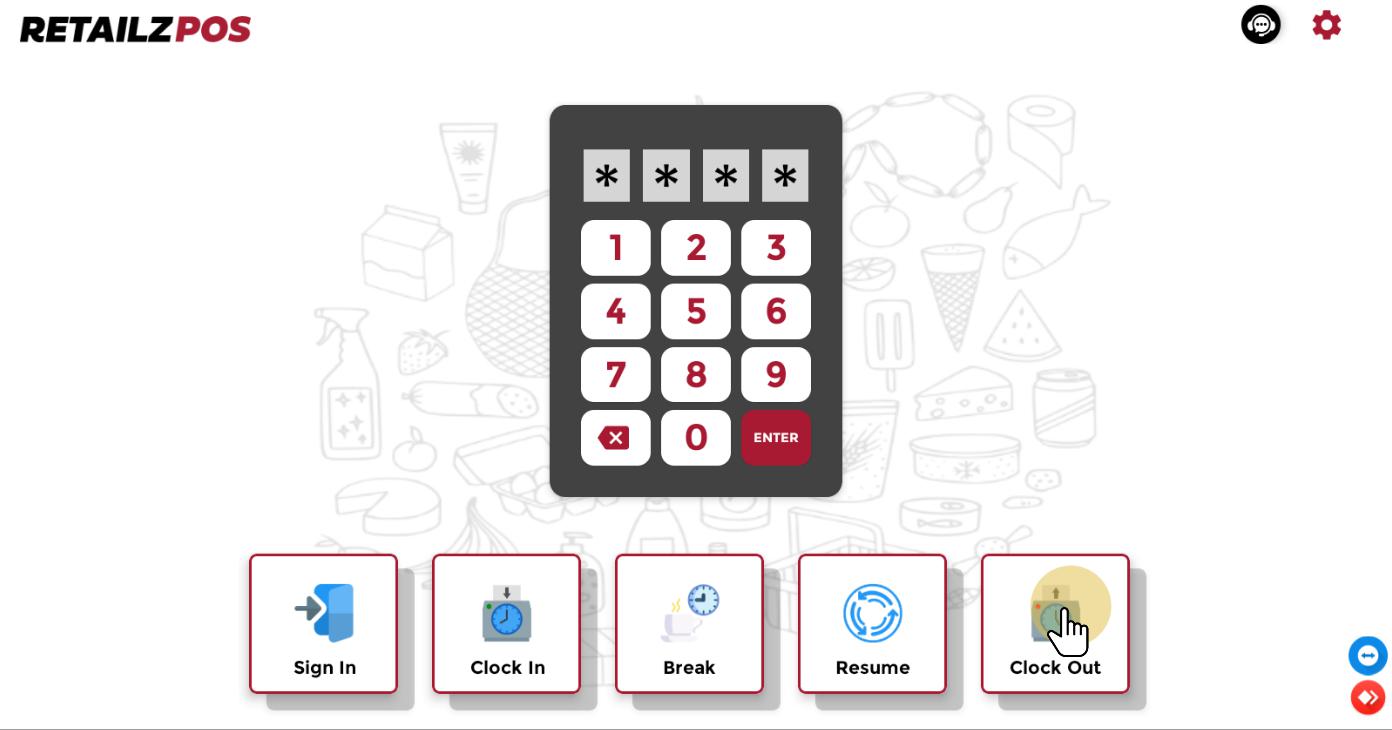
Select Clock Out #
Select Clock Out.
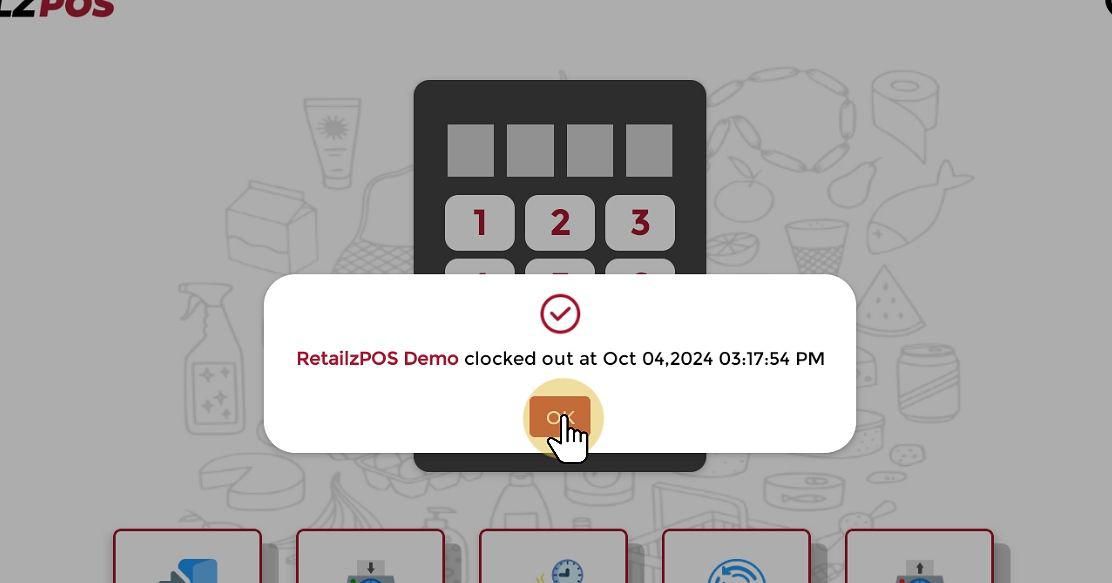
Clock Out – Popup #
A popup will appear showing information about the Employee Name, Clock Out Date, and Clock Out Time.
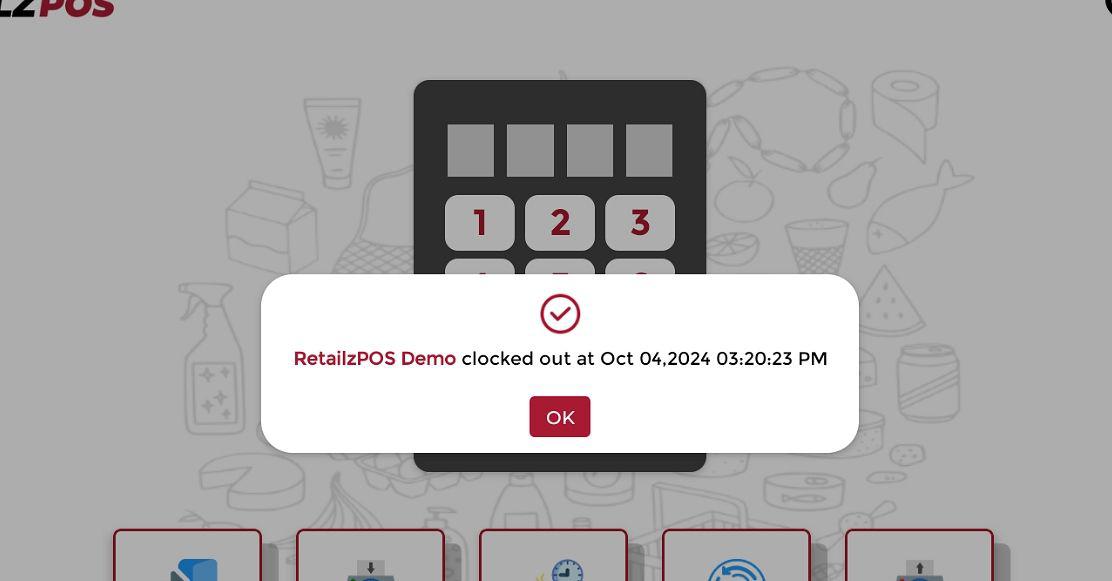
Select OK #
Select OK to successfully Clock Out.
Note: If an employee is not clocked in and you try to clock out, a popup will say “Please Clock In First.”
Break – Enter PIN #
To go on Break, enter your four-digit access pin.
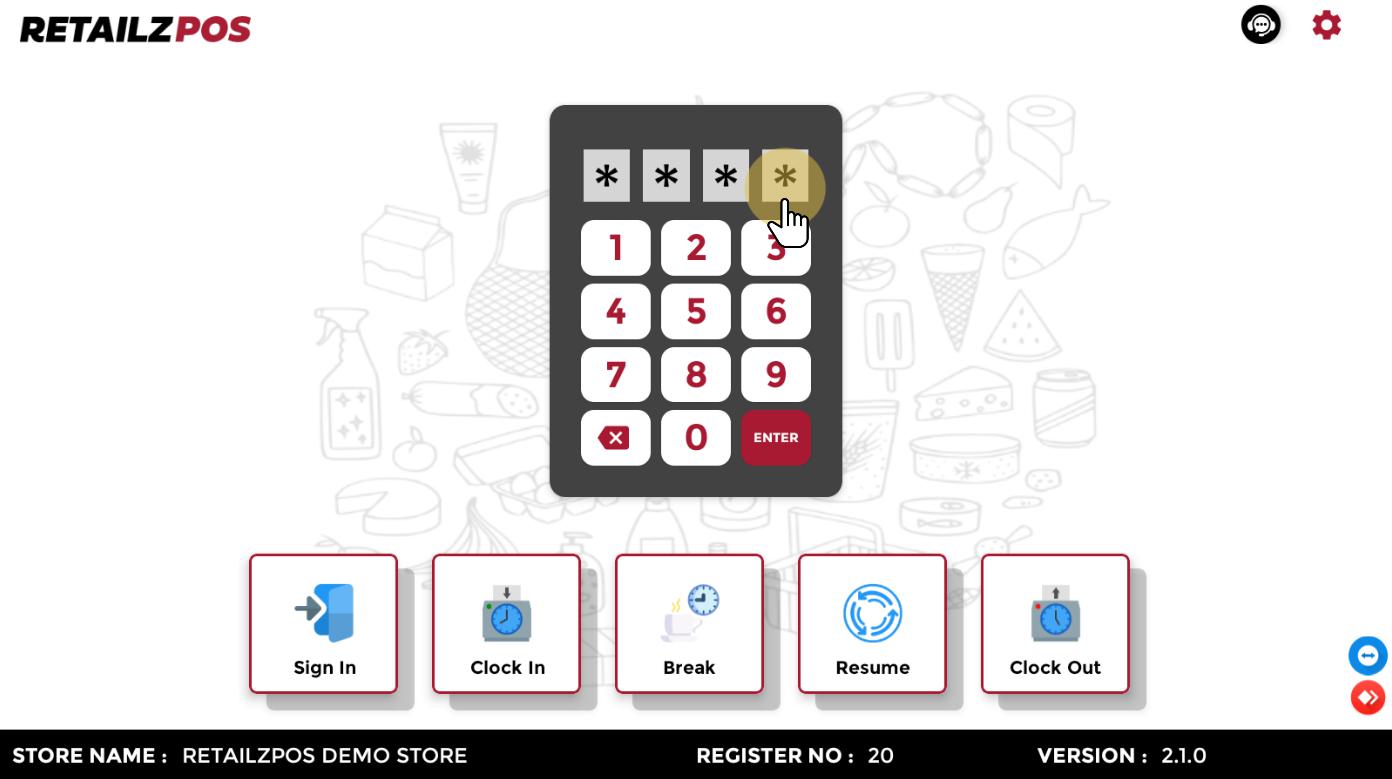
Break #
Select Break.
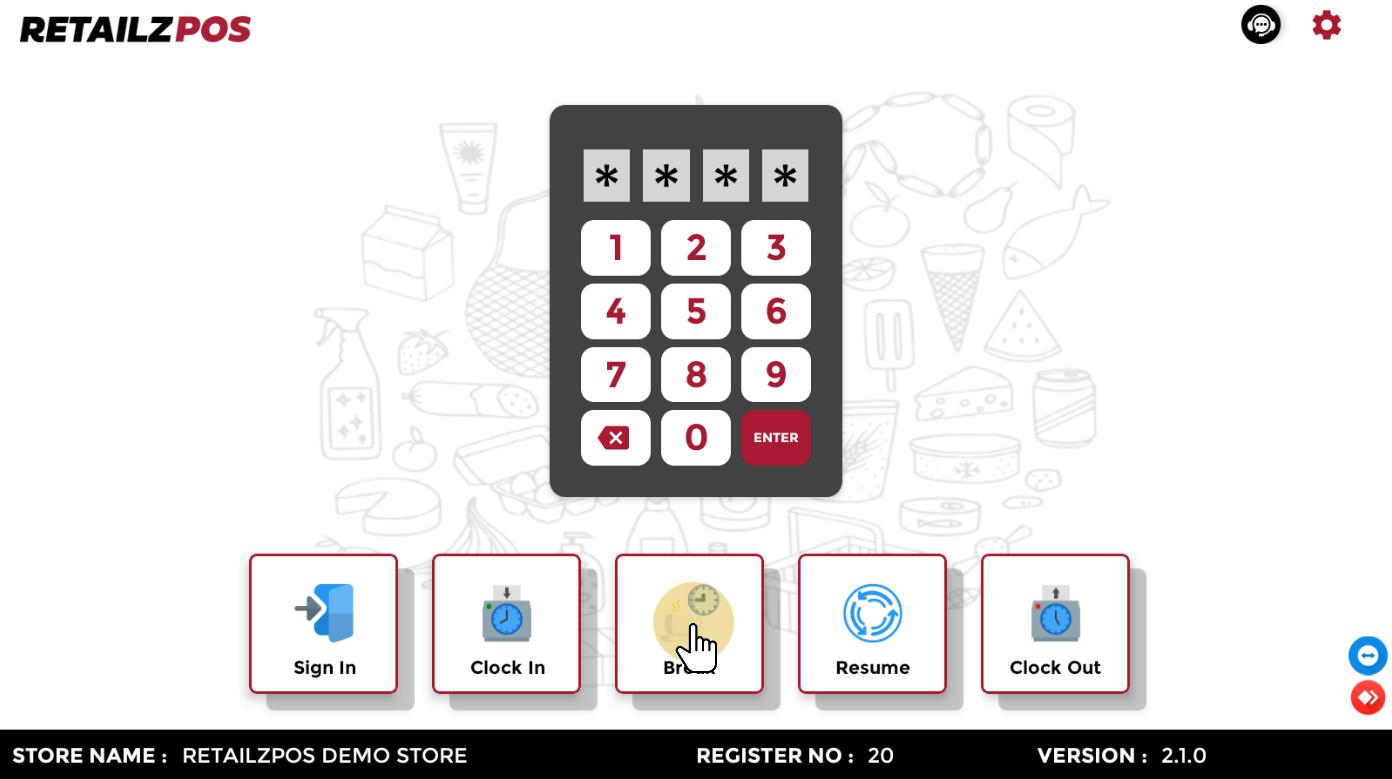
Break – Popup #
A popup will appear showing information about the Employee Name, Break Out Date, and Break Out Time.
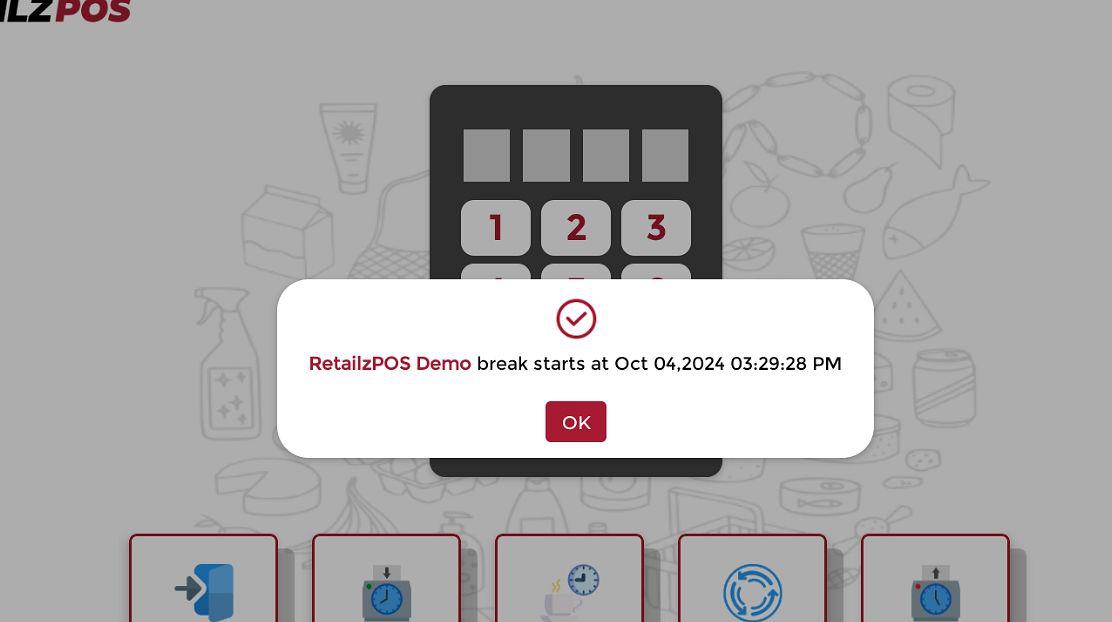
Select OK #
Select OK to successfully go on Break.
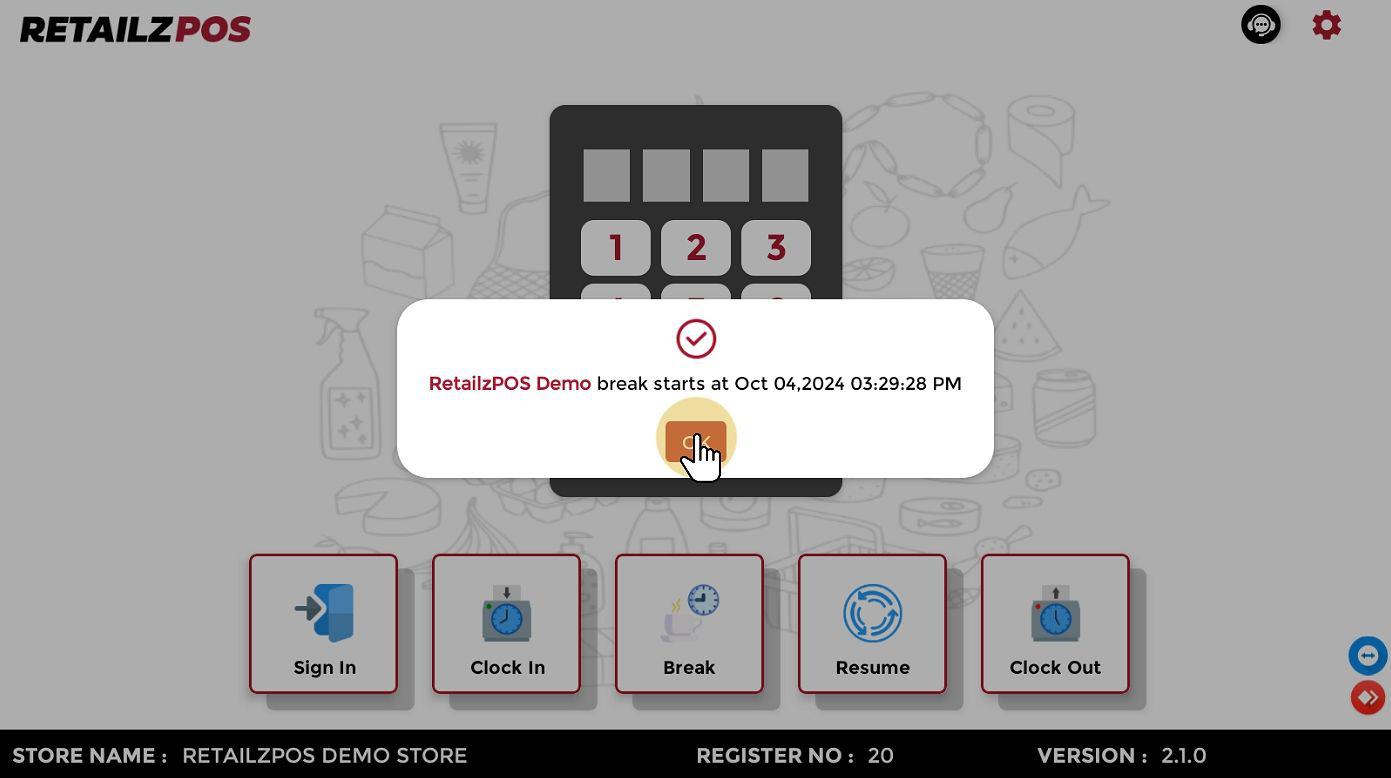
Note: If an employee is already on break, a popup will say “Please first click Resume to log in.”
Resume – Enter PIN #
To Resume from break, enter your four-digit access pin.
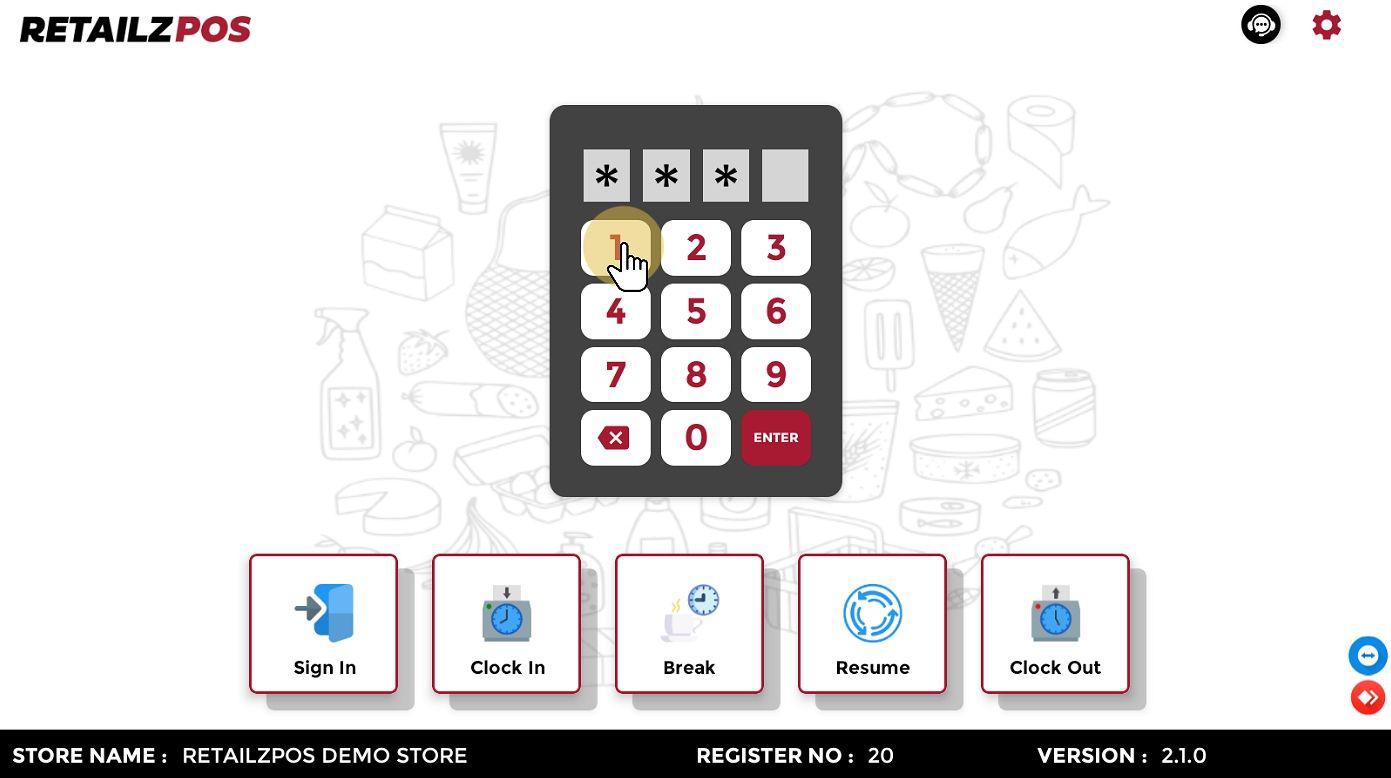
Select Resume #
Select Resume.
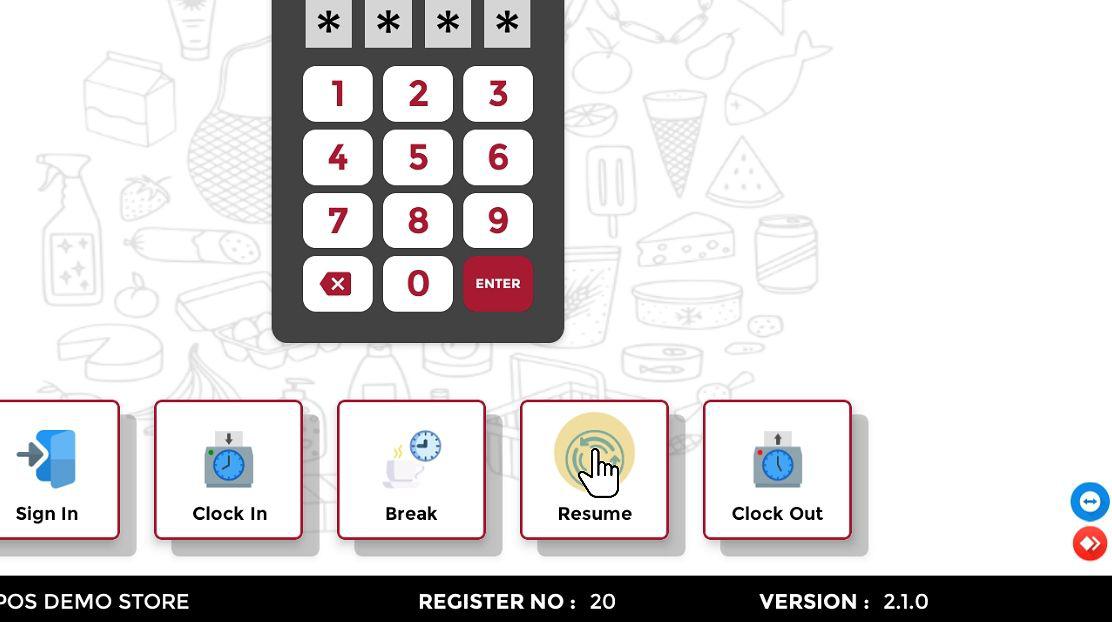
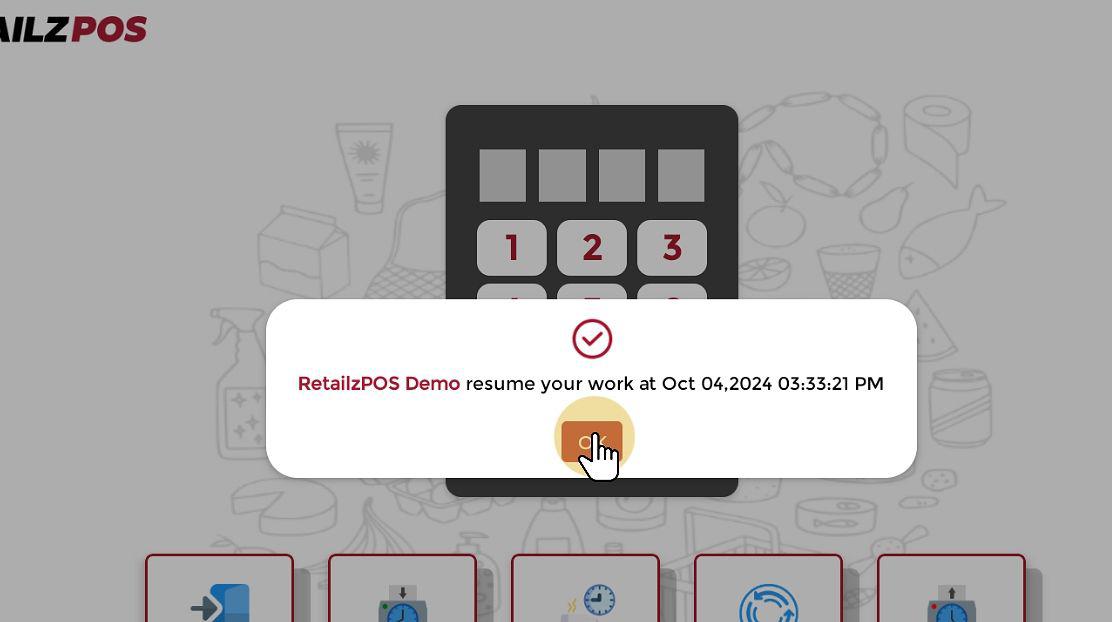
Resume – Popup #
A popup will appear showing information about the Employee Name, Resume In Date, and Resume In Time.
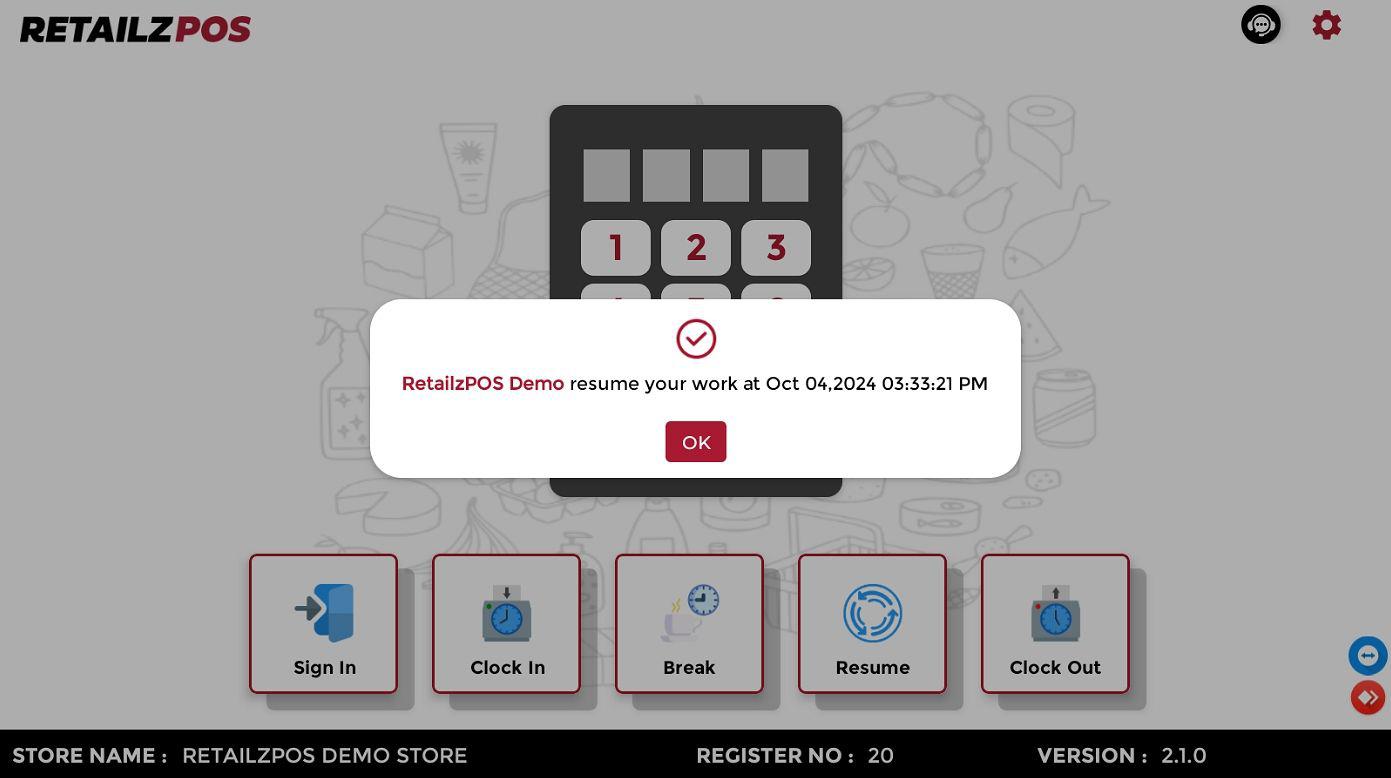
Select OK #
Select OK to successfully Resume from break.