Overview #
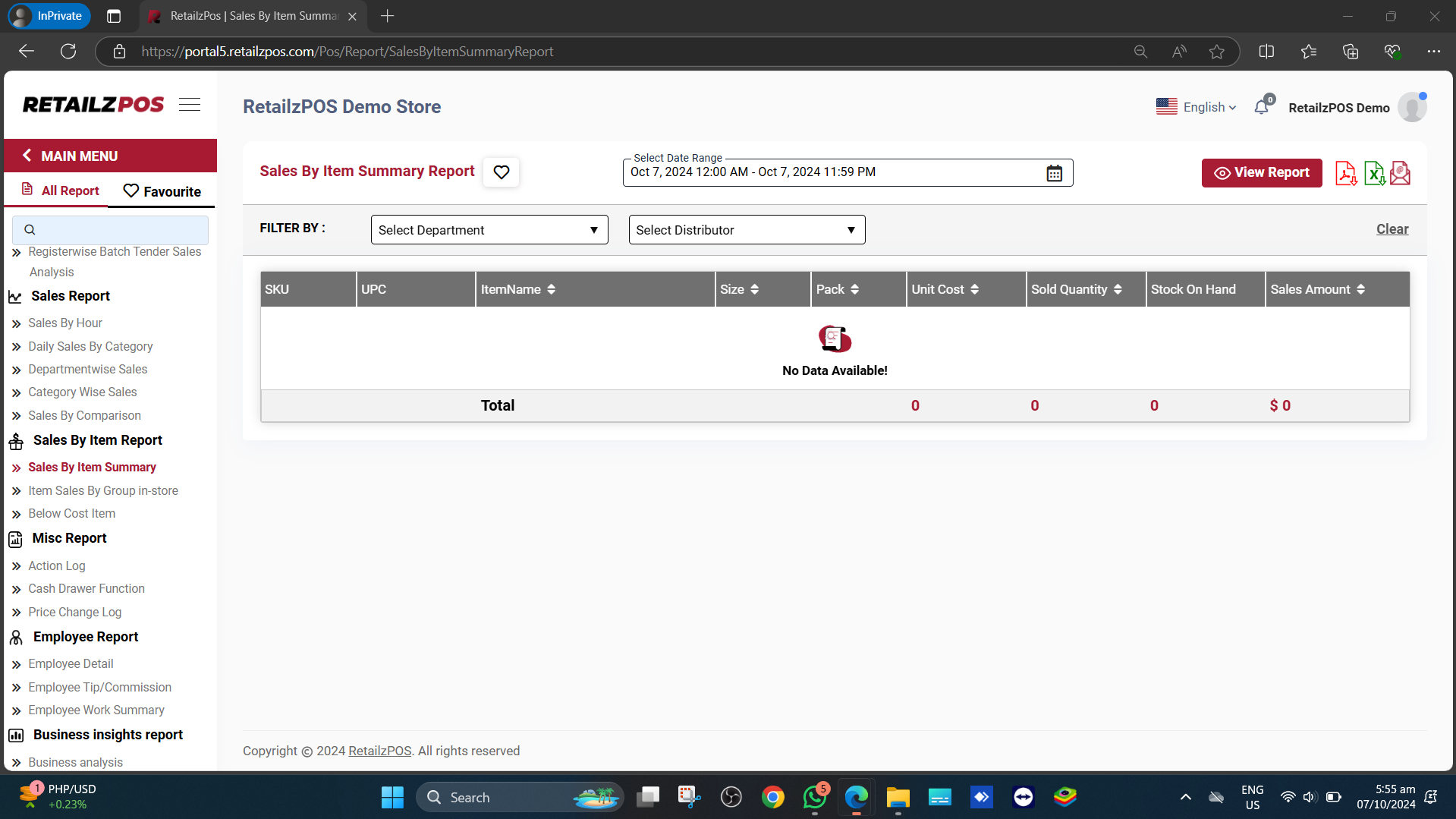
The Sales By Item Summary Report provides detailed insights into sales performance by specific items, helping identify top-selling products and manage inventory effectively. It will provide you with information about:
• SKU
• Item Name
• UPC
• Unit Cost
• Sold Quantity
• Stock on Hand
• Sales Amount
• Total Amounts
Access the Report #
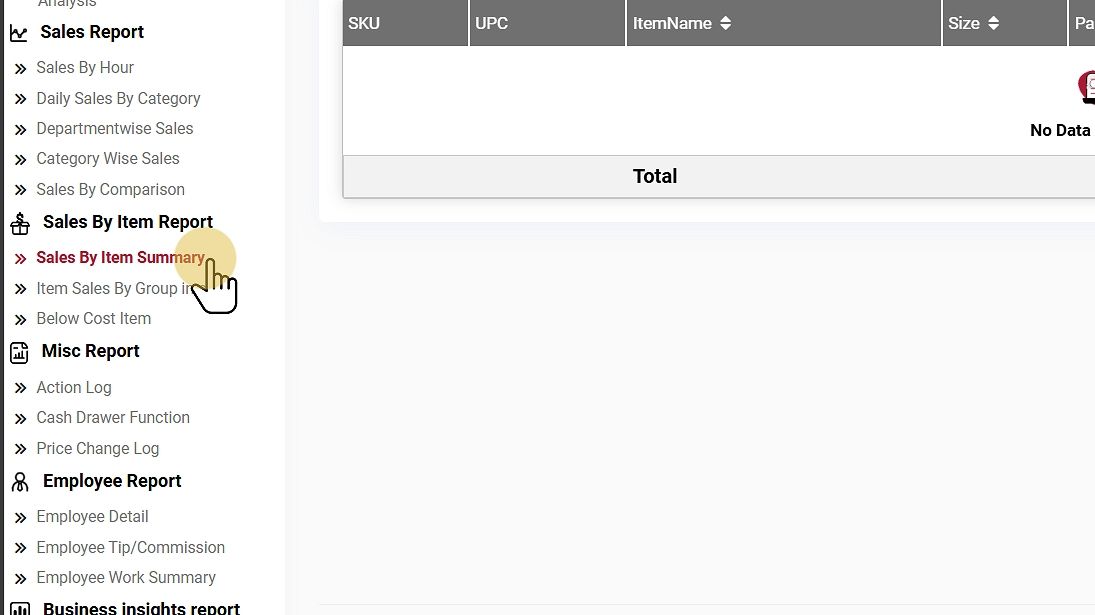
Select the Sales By Item Summary under the Sales Summary Report section.
Filter Options #
Select Date Range #
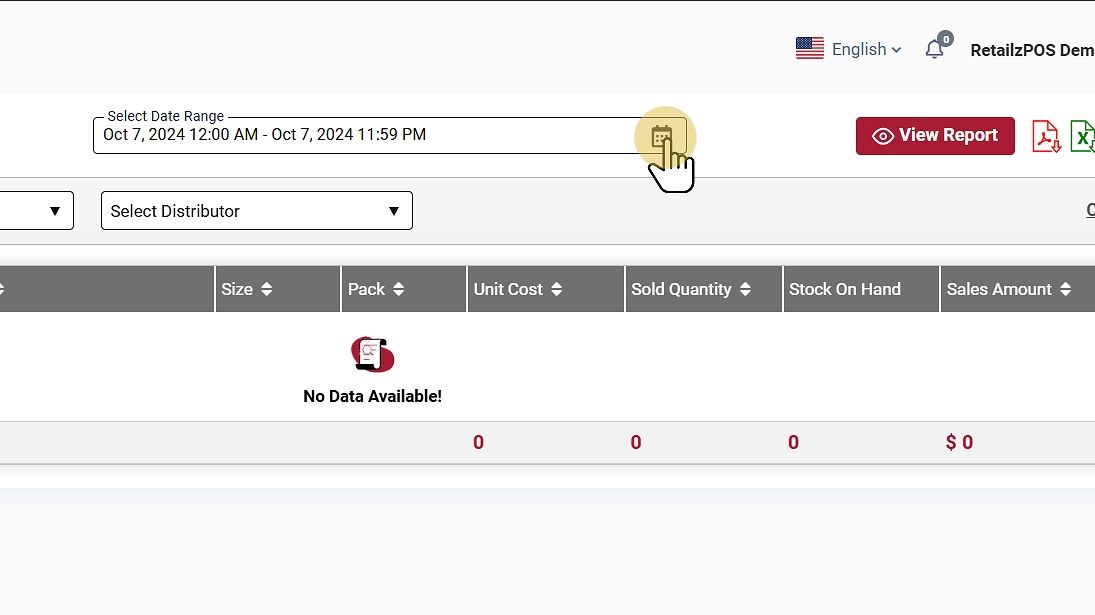
Choose a specific date range to generate the report.
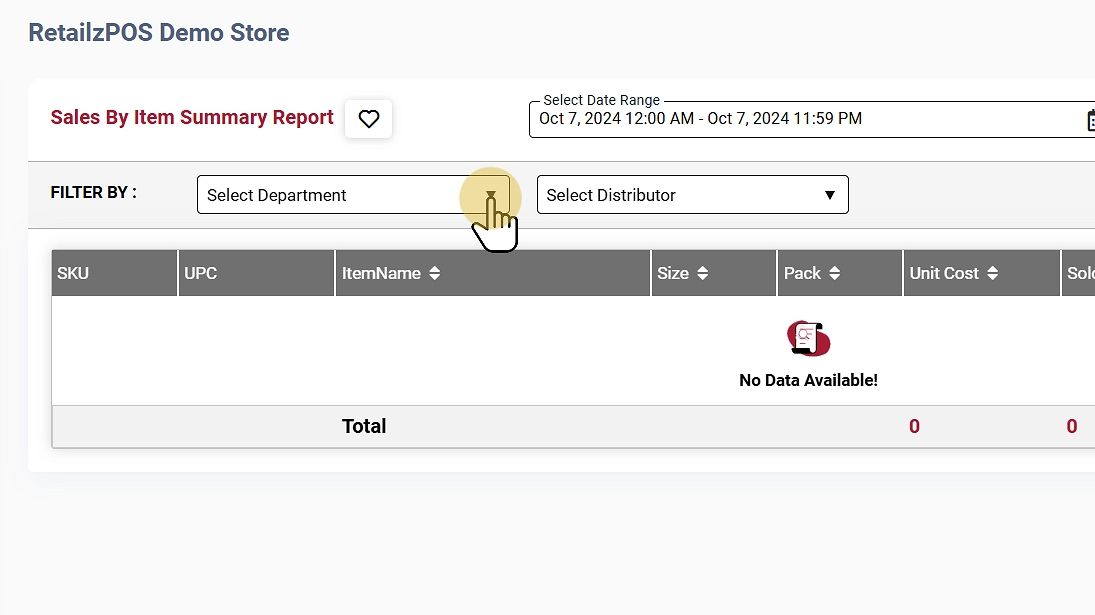
Select Department #
Filter the Select Department to view the sales of the items that belong to a specific department in your store.
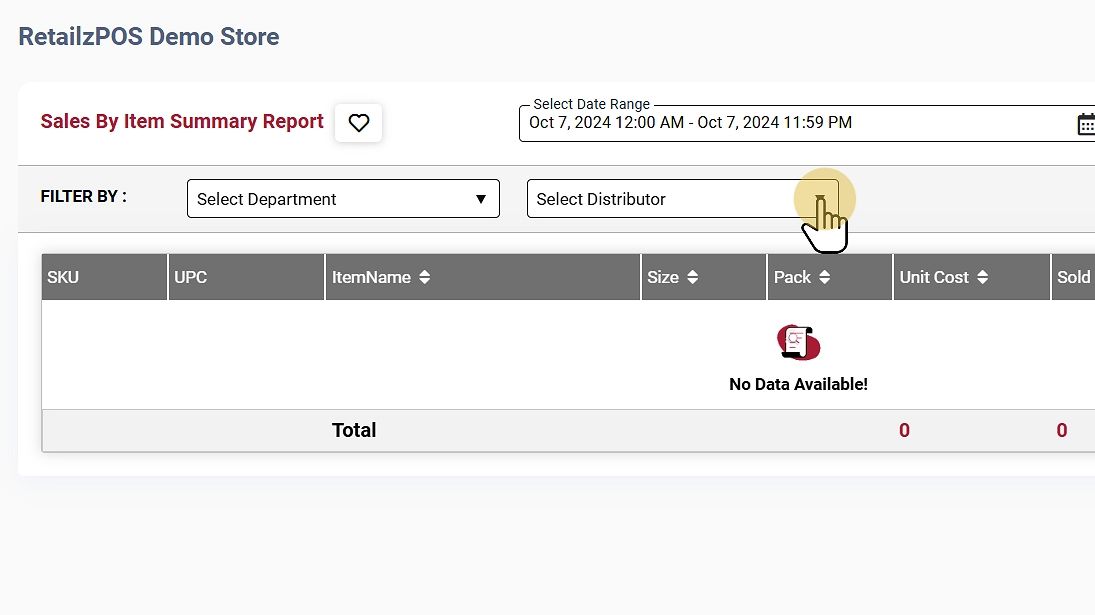
Select Distributor #
Filter the Select Distributor to view the sales of the items that belong to a specific distributor of your store.
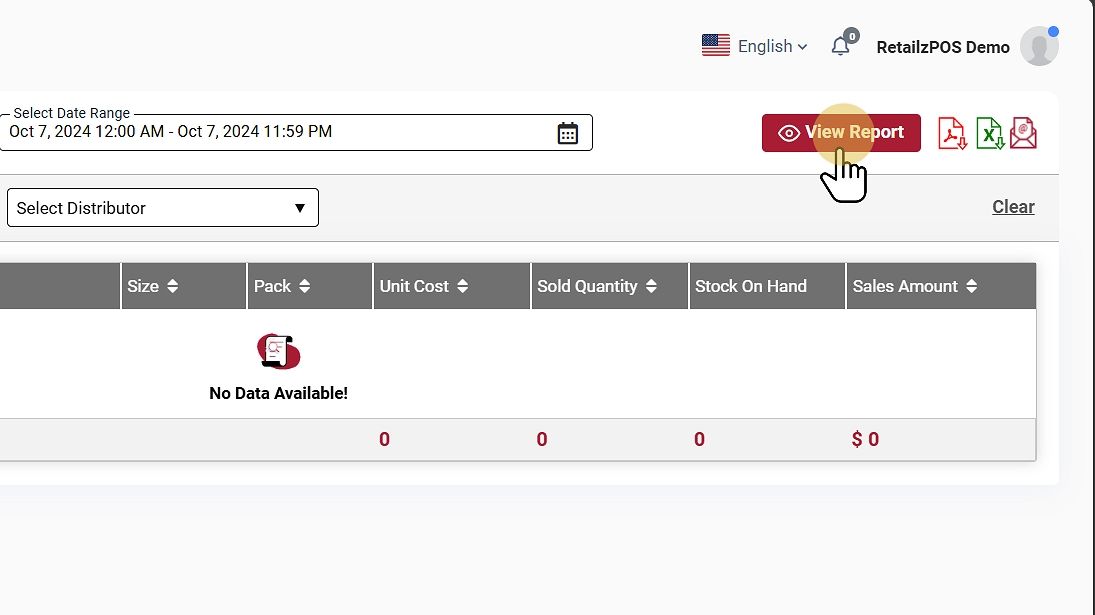
View Report #
Tap the View Report Button to see the report.
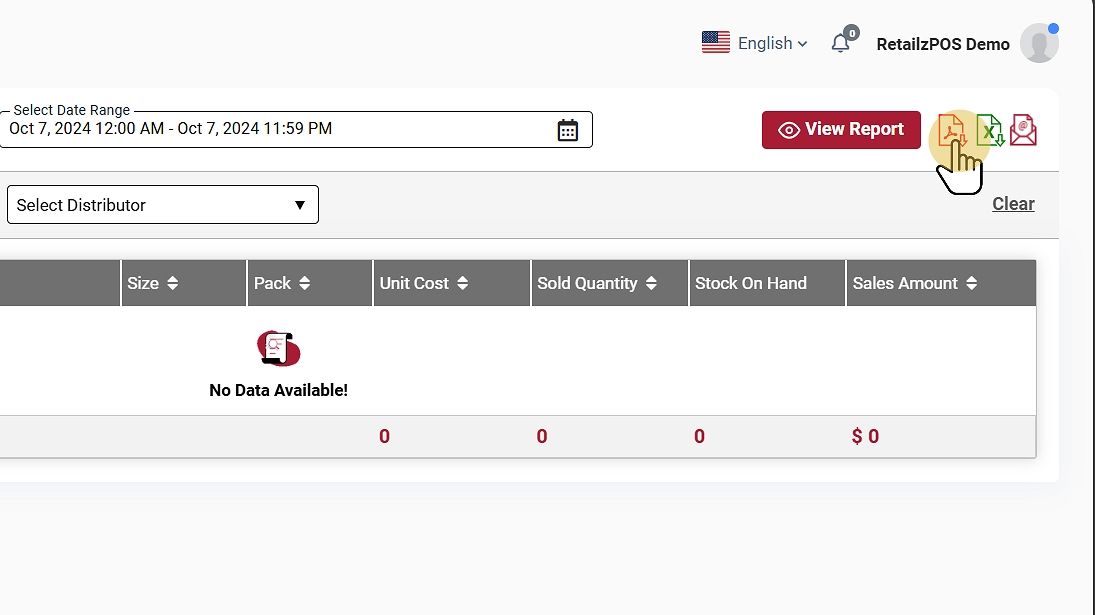
Download or Share #
- PDF File: Click the red file icon to download the report as a PDF.
- Excel File: Click the green file icon to download as an Excel file.
- Email Report: Send the report by email by entering the name and email address of the recipient.
Favourite #
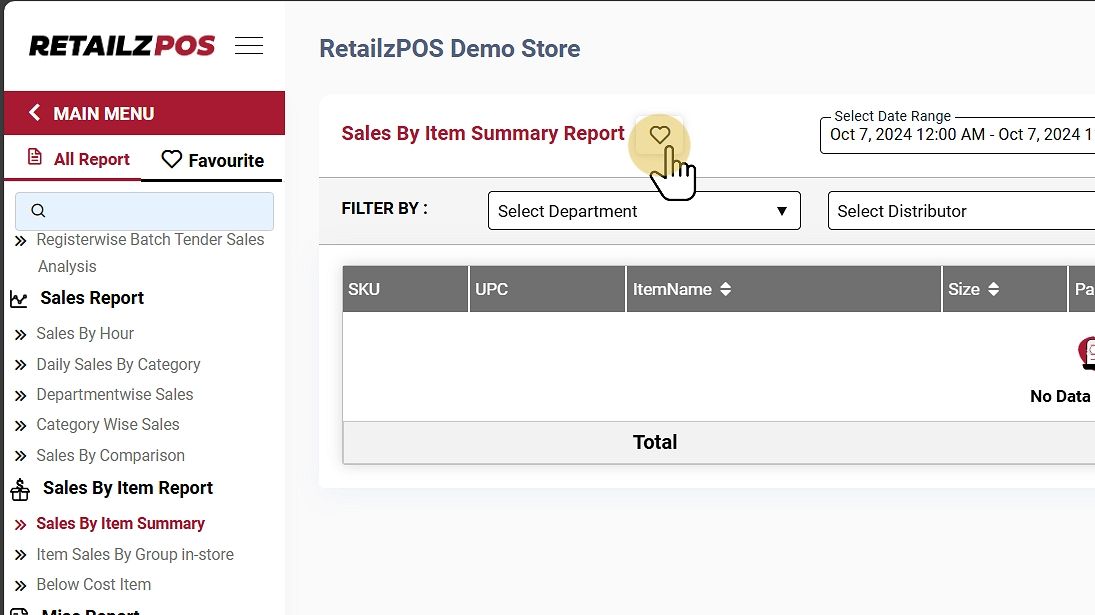
Mark the report as a favorite by tapping the “heart” icon.
It will display the configured favorite reports.
Refresh Report #
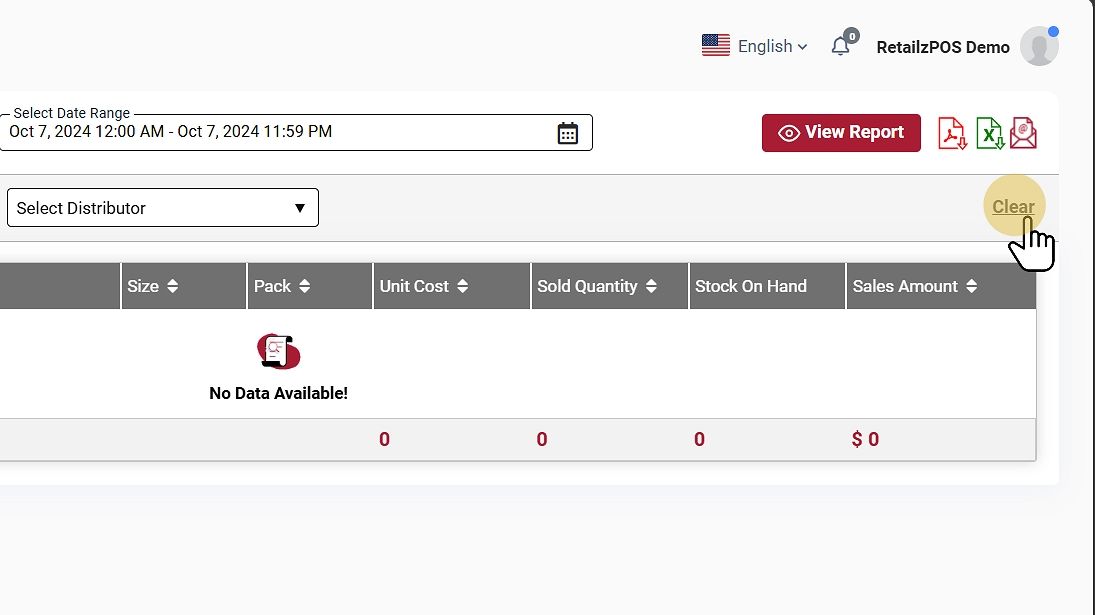
To refresh the report, click the clear button at the upper-right corner of the screen