
Time Card is where you can go to manage the employee’s working hours. You can perform Clock In, Clock Out, Break, Resume and End Shift. Once you’re on the Time Card screen, on the bottom half you are able to see the employee’s section along with the list of employees and Action Buttons (Clock in, Clock out, Break, Resume, End Shift). On the top half you are able to see the employee’s who have clocked in, along with their name and their corresponding Check-in Time and Working Hours.
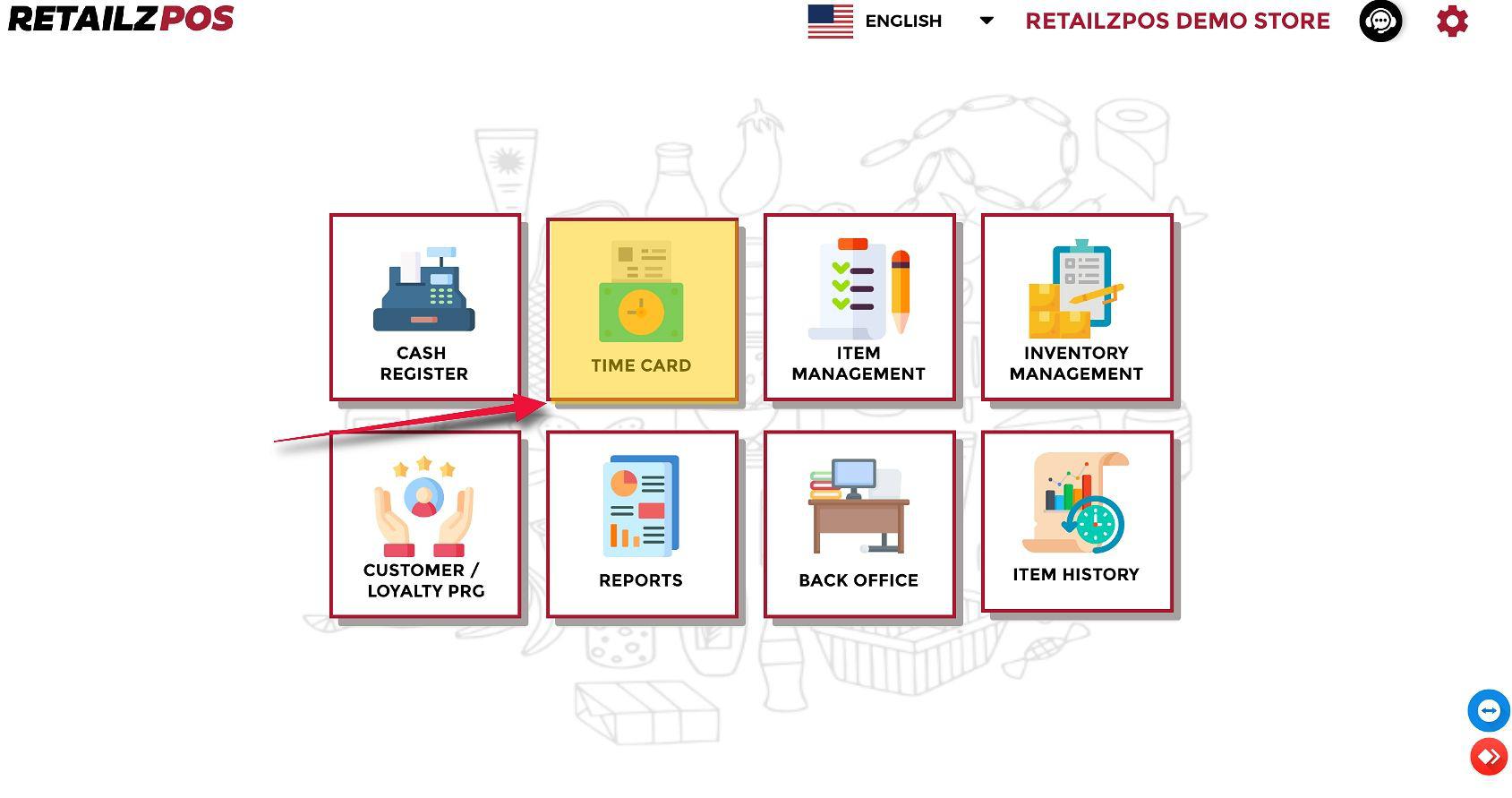
Selecting Account #
From the bottom half of the Time Card screen, you are able to see the “Employees” Section where you can find the employee names and on the right side, the action buttons you can do.
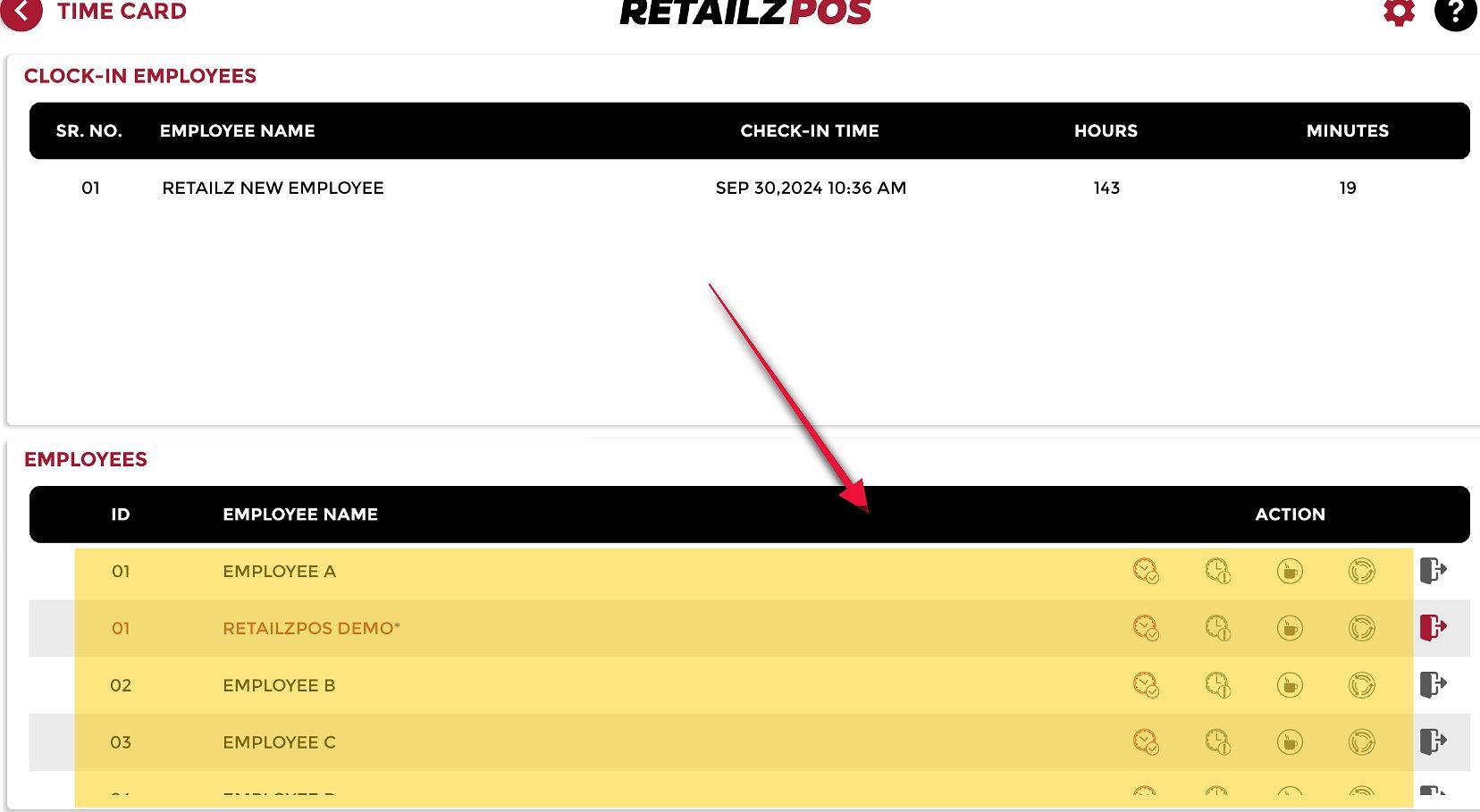
Clock In Button #
To Clock in, tap the first action button from the left which is the Clock In button.

Entering Pin #
Input the 4-Digit Access Pin of the employee and click the Enter button.

Pop up notification #
A popup will appear showing information about the Employee Name, Clock In Date, and Clock In Time.
Select OK to successfully Clock In.

Clock Out Button #
To Clock Out, tap the second action button from the left, which is the Clock Out button.

Entering Pin #
Input the 4-Digit Access Pin of the employee and click the Enter button.

Pop up notification #
A popup will appear showing Employee Name, Clock Out Date, and Clock Out Time information.
Select OK to successfully Clock out.

Break Button #
To go on Break, tap the third action button, which is the Break button.

Entering Pin #
Input the 4-Digit Access Pin of the employee and click the Enter button.
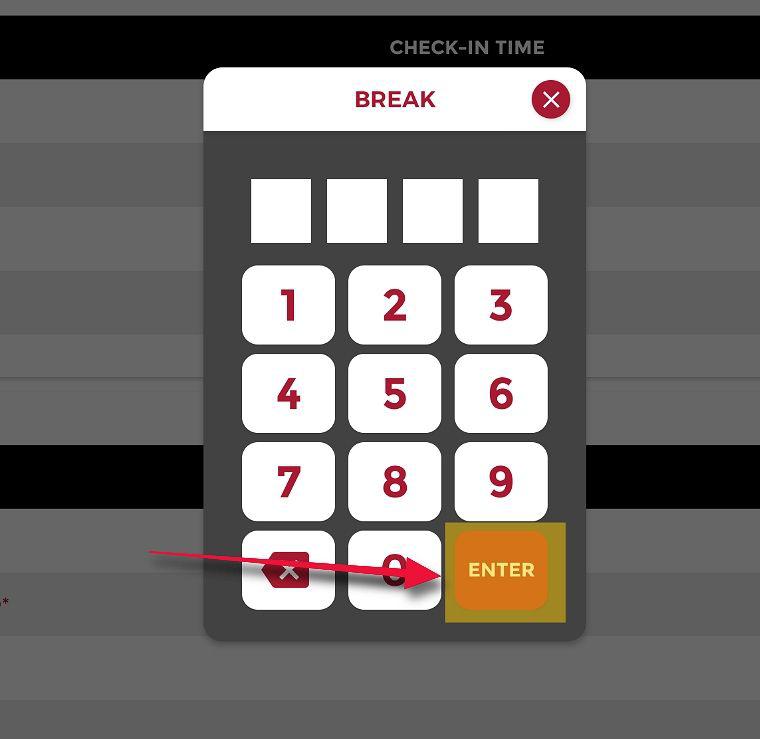
Pop up notification #
A popup will appear showing information about the Employee Name, Break In Date, and Break In Time.
Select OK to successfully Break In.

Employee End Shift:
Resume Button #
To Resume from break, select the fourth action button which is the Resume button.

Entering Pin #
Input the 4-Digit Access Pin of the employee and click the Enter button.

Pop up notification #
A popup will appear showing information about the Employee Name, Resume Date, and Resume Time.
Select OK to successfully Break In.

End Shift Button #
Select the last action button on the right to perform an End Shift.

Entering Pin #
Input the 4-Digit Access Pin of the employee and click the Enter button.

Pop up notification #
A popup will appear showing a message “We are performing end of shift”, once done it will return to the 4 Pin Login screen.

Time Card Adjustment #
Click the Settings button on the upper right corner of the time card screen.
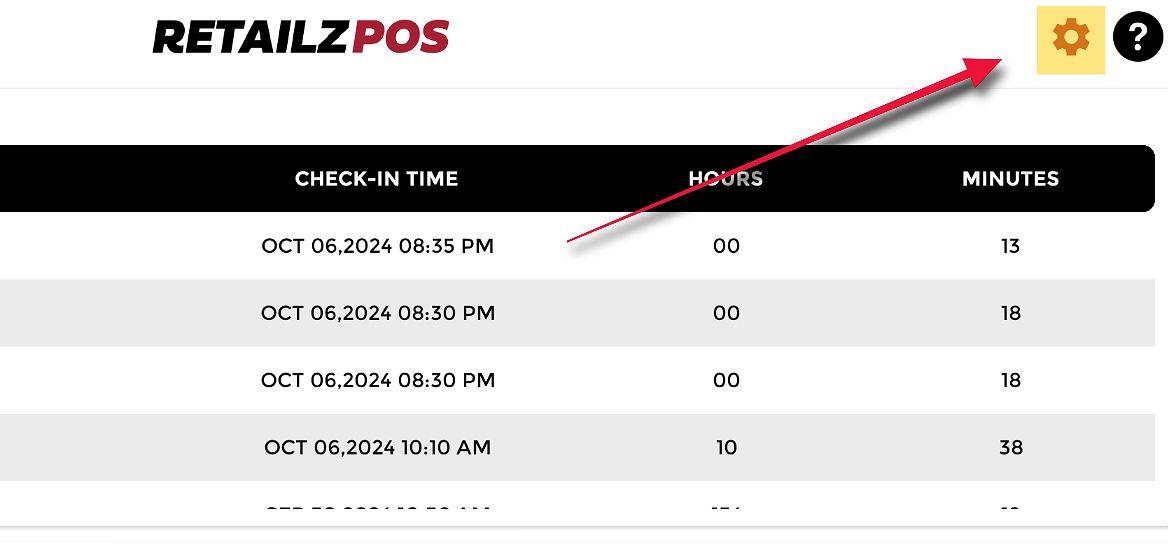
Entering Pin #
Input the 4-Digit Access Pin of the employee and click the Enter button.

Select Employee #
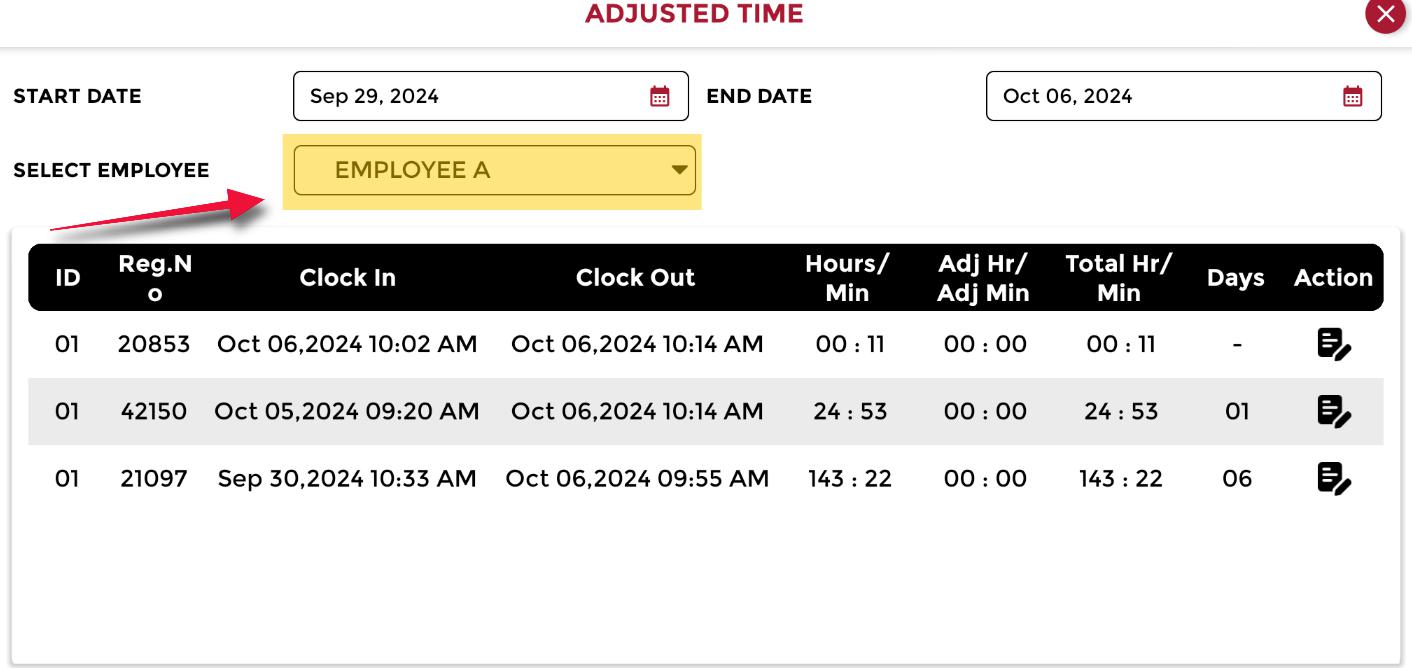
A new popup will appear showing All Employees who are currently Clocked In.
Select an employee from the employee drop down list.
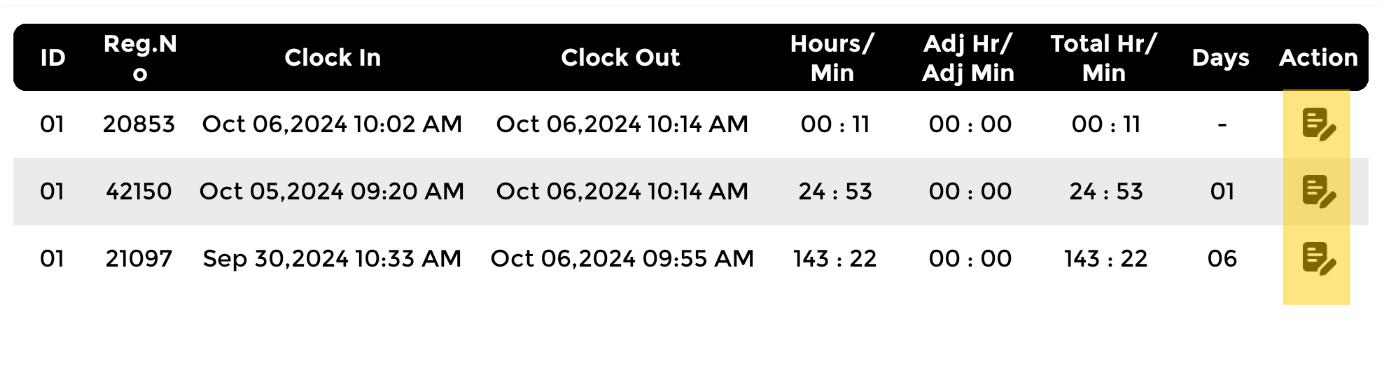
Adjustment button #
Select the Action button on the far right of the employee’s clock in details.
Adjusting time #
Input the correct Date and Time for the employee’s work hours.
Select Save to make the Working Hour Adjustment.
